Configuring SSO Token Generation for Oracle and MSSQL Databases
Follow the steps below for your specific database environment to generate an SSO token. If more than one credential is assigned to your user account for the device, Kron DAM asks you to select one before it completes the connection.
For Oracle Databases:
- Log in to the Kron PAM GUI.
- Navigate to the Device Options menu for the relevant Oracle database.
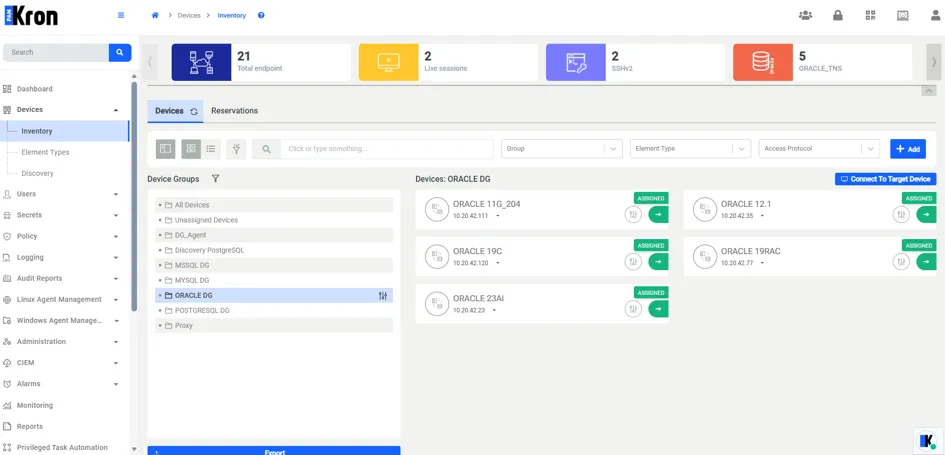
- Click the Connect to Target Database (green arrow) icon.
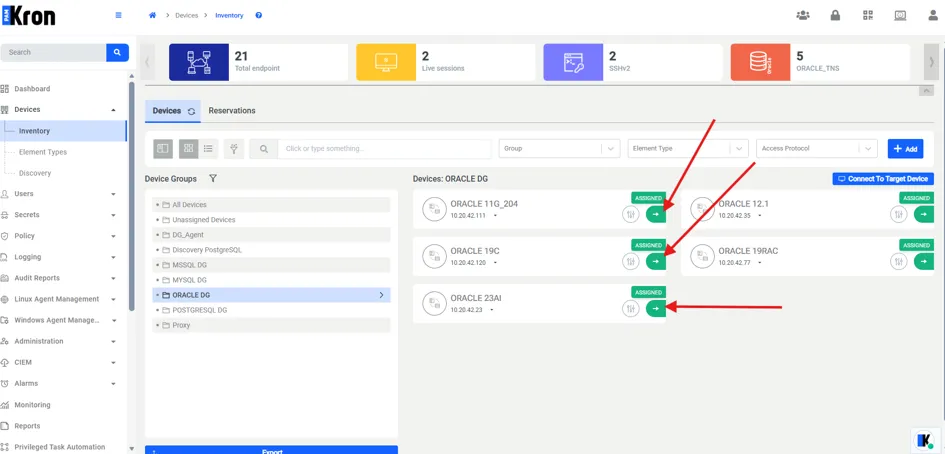
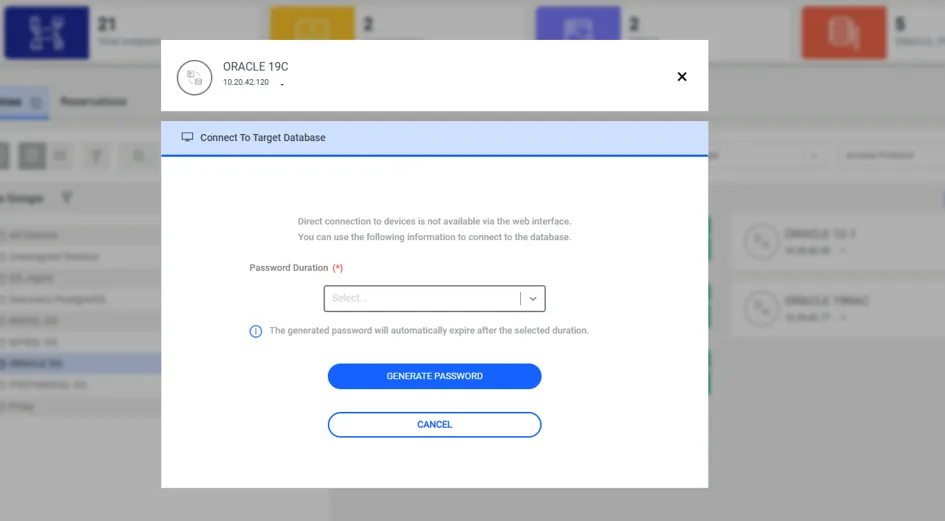
- If more than one credential is assigned to your user account for this device, select one in the Connect To Target Database dialog.

- Select the token validity period:
- 5 minutes
- 30 minutes
- 2 hours
- 24 hours
- Copy the generated password
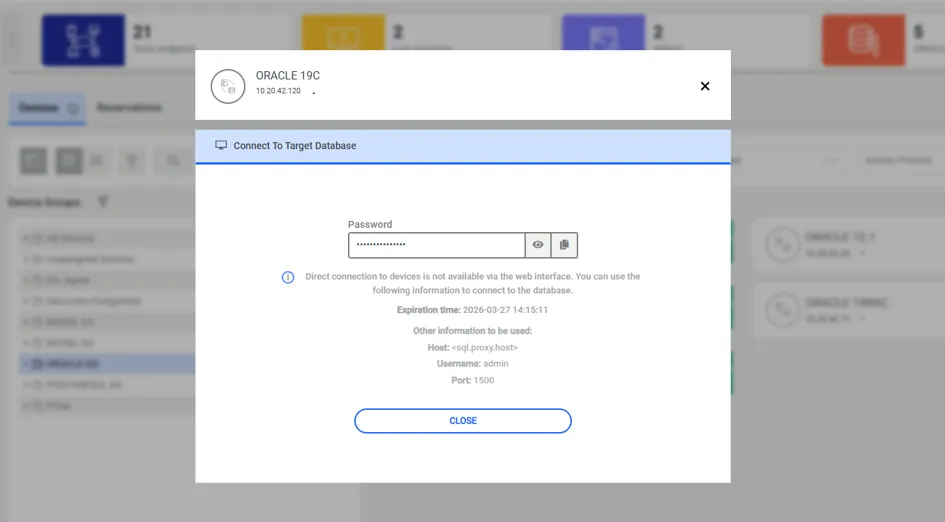
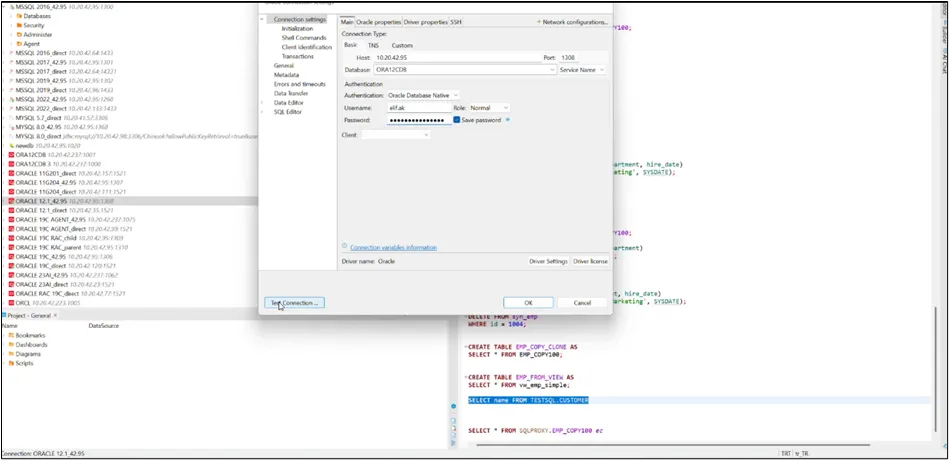
- Use the token as the password when connecting to Oracle.
For MSSQL Databases:
MSSQL SSO supports both LDAP and non-LDAP users. LDAP users authenticate to Kron DAM via LDAP and access the MSSQL database through the shared credential assigned to the User Group, while non-LDAP users connect to the database directly using their database credentials.
Non-LDAP:
- Go to Users and assign this user to the relevant user group.
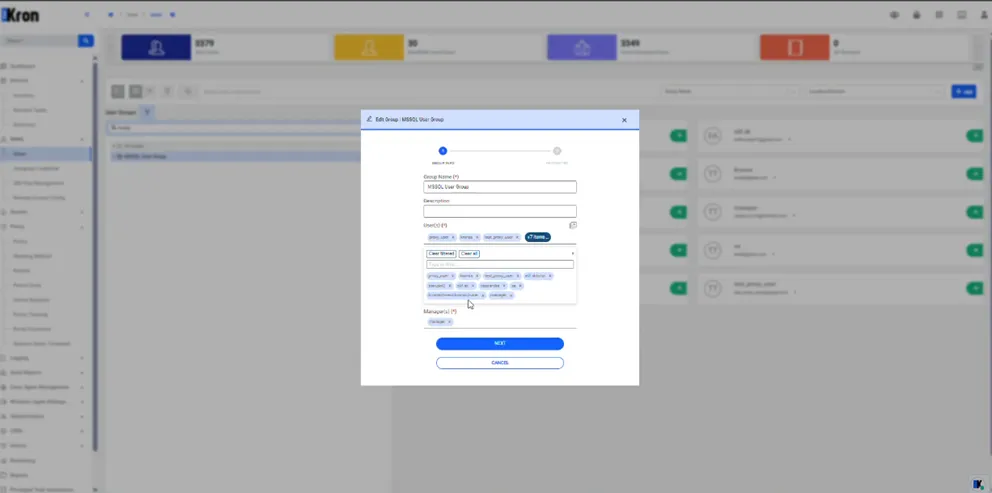
- Once users are properly assigned to the realm and the configuration is complete, they can connect to the MSSQL database via SSO.

JDBC Driver supports Single Sign-On (SSO) connections for Oracle and Microsoft SQL Server. In addition, SSO can be enabled for PostgreSQL and MySQL through the same configuration approach used for MSSQL. While SQL Proxy only supports SSO for Oracle and MSSQL, JDBC Driver extends SSO connectivity to PostgreSQL and MySQL as well.