Configuring ServiceCore Integration for Approvals
The ServiceCore application is a tool that enables users to consolidate interactions from all channels into a single channel, process them, and approve or reject necessary requests. The integration process with Kron PAM covers user connection requests through connection approval in the SSH and RDP modules.
As the initial step for device access requests in the SSH or RDP modules, the “TicketId” value opened from the ServiceCore application is matched with the Workflow in the Kron PAM application. This ensures that the entire process, from tracking within the Kron PAM environment to logging and finalization, is recorded.
- Definition of System Parameters
This section describes the definition of parameters required for the integration between the ServiceCore application and Kron PAM..
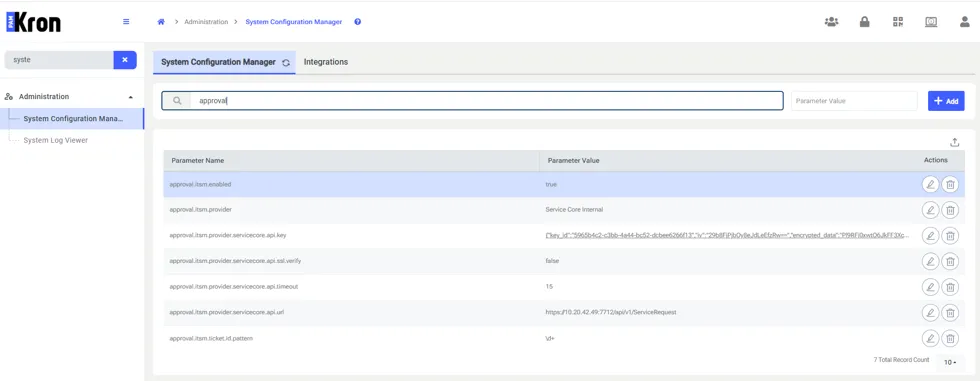
Fristly, Administrator à System Configuration Manager screen will define the parameters required for the two applications to connect with each other. These parameters are listed below.
Parameter Name | Description | Parameter Value (sample) |
|---|---|---|
approval.itsm.enabled | Entegration active or passive (required) | true/false |
approval.itsm.ticket.id.pattern | Regex to limit ticket id format (optional) | \d+ |
approval.itsm.provider | Provider Name ServiceCore – (required) | Service Core Internal |
approval.itsm.provider.servicecore.api.url | BASE API, endpoint- (required) | https://10.20.42.30:7712/api/v1/ServiceRequest |
approval.itsm.provider.servicecore.api.key | API key encrypted (required) | ogdgyu84wkVgN5M#6Sow%3vm9/5Bo4, |
approval.itsm.provider.servicecore.api.timeout | Request timeout (default 30 seconds) (optional) | 15 |
approval.itsm.provider.servicecore.api.ssl.verify | SSL Trust (default true) – (optional) | True |
- Creating Approval Workflow
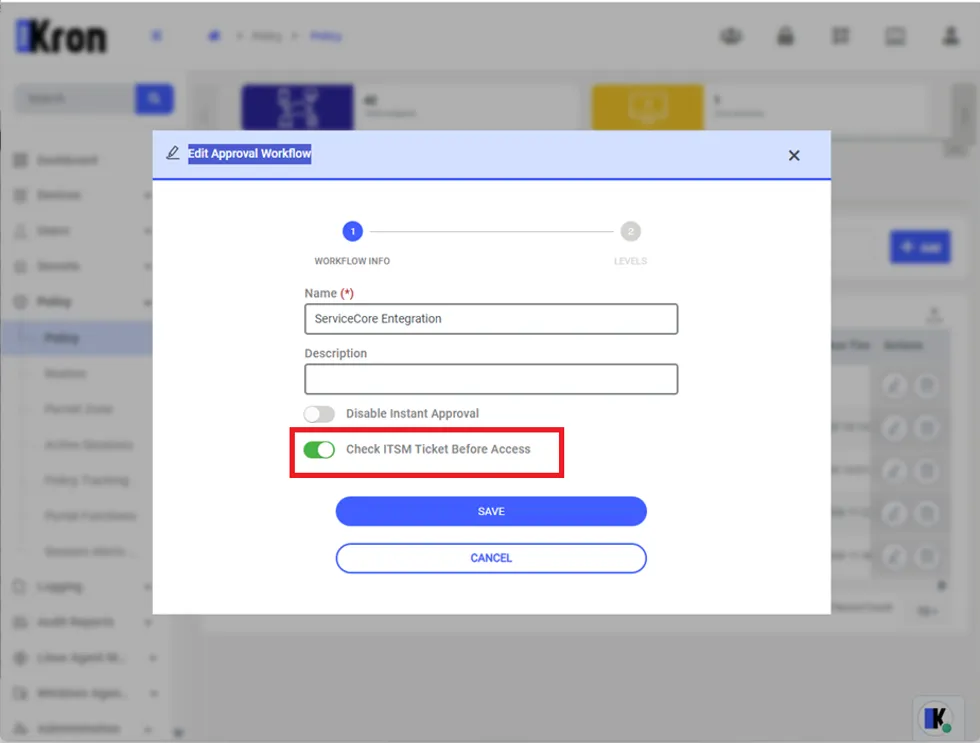
After the necessary parameter definitions for ServiceCore integration have been made, the definition will be made from the Policy à Approval Workflow screen. When the value of the “approval.itsm.enabled” parameter defined in the System Configuration Manager screen is set to “True” the “Check ITSM Ticket Before Access” button will become visible in the Approval Workflow screen.
If this parameter is set to “On” the “Disable Instant Approval” parameter will switch to the “Off” state and cannot be reactivated. Additionally, you will not be able to navigate to the screen where Workflow Levels are defined.
- Creating Policy Group
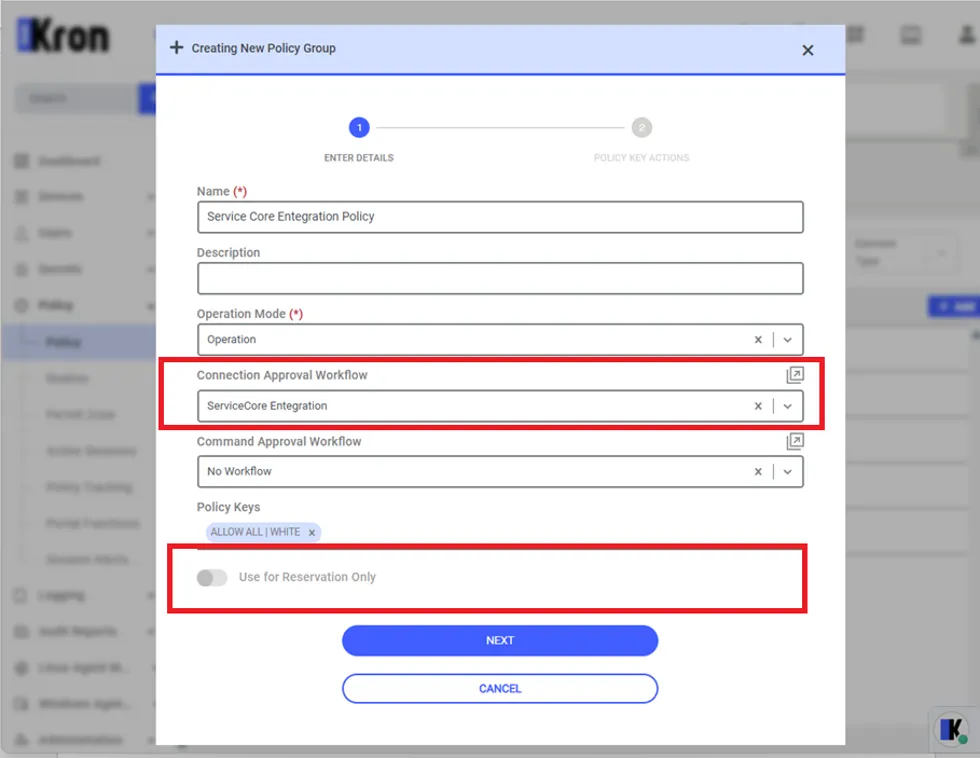
The Kron PAM application defines how the approval mechanism for ServiceCore integration should be used during device connection, based on the definitions in the “Policy Group” screen..
The workflow definition with the “Check ITSM Ticket Before Access” option set to ‘On’ in the Policy -> Approval Workflow screen is listed in the “Connection Approval Workflow” dropdown list box in the Policy Group definition criteria.The “Use for Reservation Only” button on the screen is disabled for the workflow selected in this field.
After the Policy Group definition is completed, the relevant policy group selection is made in the Realm definition for which device group and user group is required to use the ServiceCore Ticket Integration. After the relevant parameter definitions are completed, a data entry screen will appear during SSH and RDP connections where users will enter the Ticket ID value.
- SSH Connection Request
After all configurations are complete, the user initiates the SSH connection for the relevant device either from the Native Client applications Putty and Moba, or from the Device Inventory or Vault screen in the PAM application. When the user selected in the device system will ask to the user for the TicketID value. The Ticket ID value entered for ServiceCore is matched with the ticket ID value related to the Connection request. In this way, the ticket ID value and result integrated with different systems are also stored in the Kron Pam application and tracked.
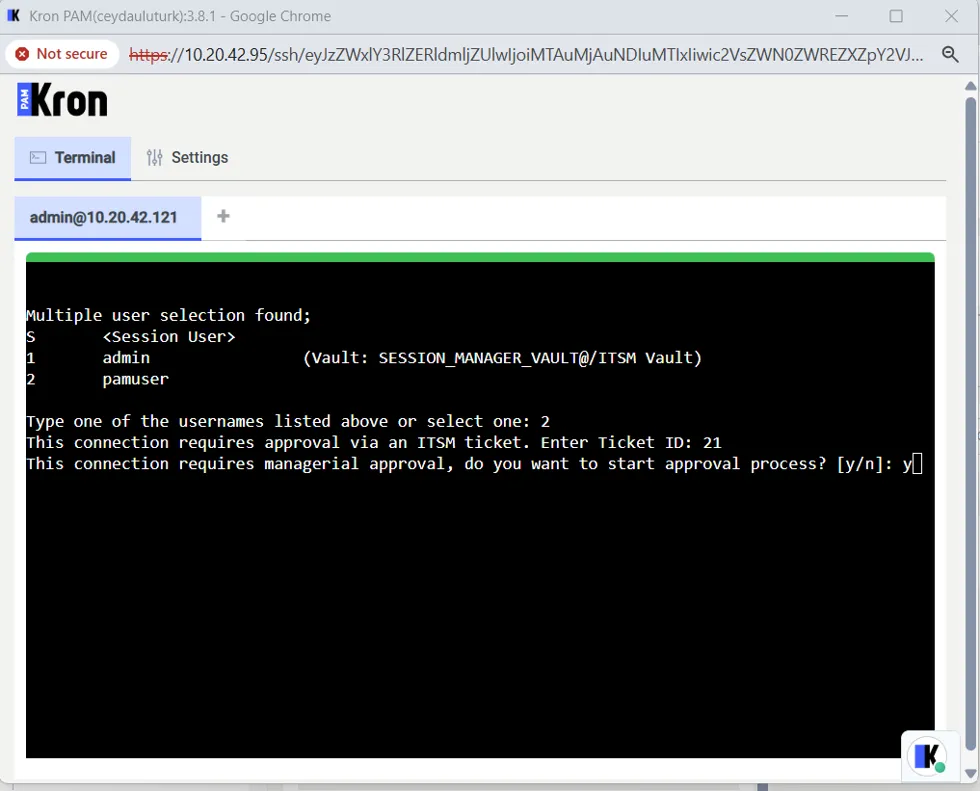
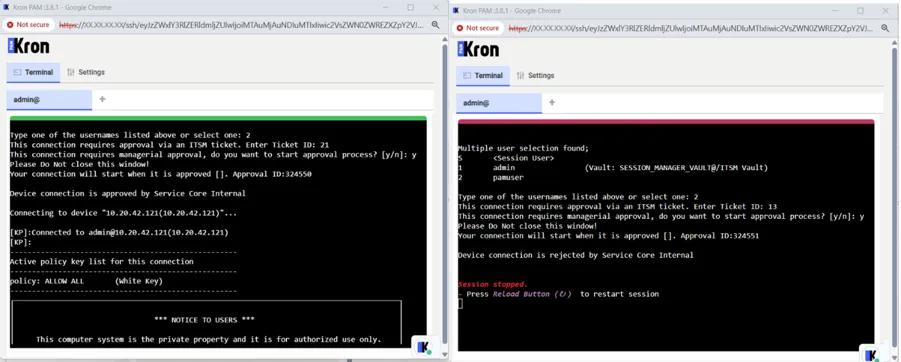
Based on the response value received from the system for the Ticket ID value entered by the user, a connection is established to the relevant device or the connection request is rejected.
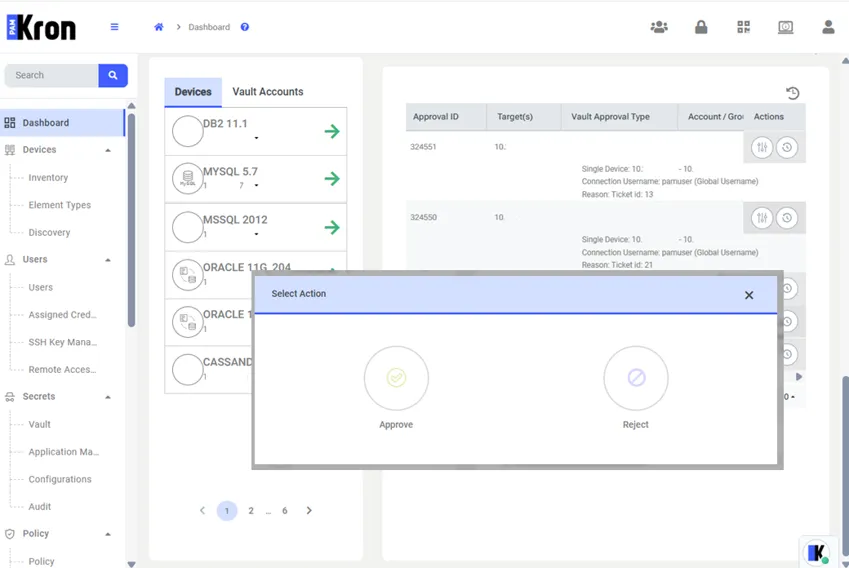
The user can access this approval workflow for connection requests from the “My Approvals” screen, but cannot click the Approve or Reject buttons.
- RDP Connection Request
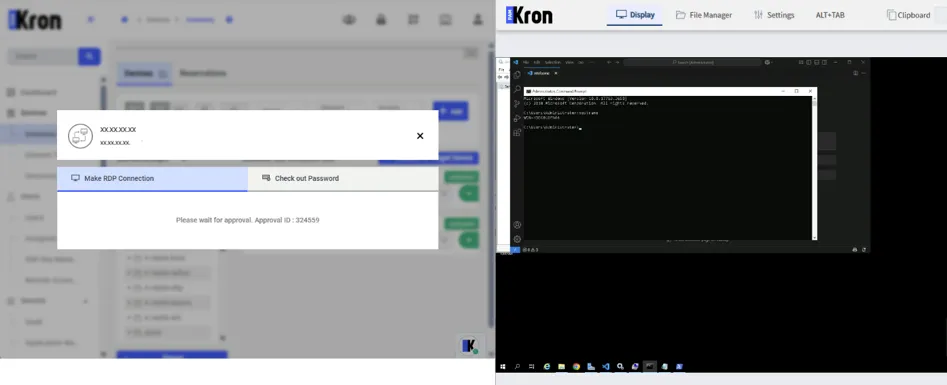
When the user makes an RDP connection request from the Device Inventory screen, a pop-up screen will appear where they will enter the TicketId value, and a workflow will be initiated for the relevant request.
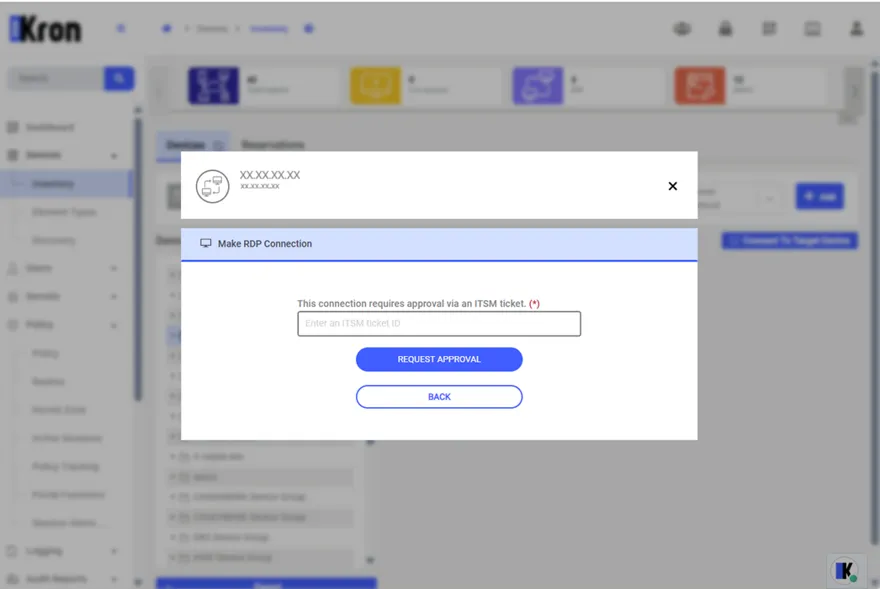
The connection will be established or not based on the approved or rejected value returned from the ServiceCore integration according to the value of the relevant ticket.
- Desktop Client Connection Request
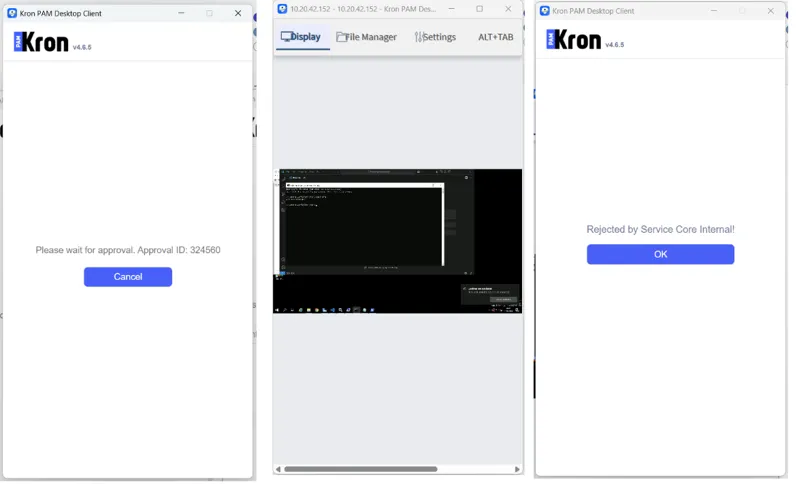
The user can open the Desktop Client application, select the relevant device, and request an RDP connection. A pop-up screen will appear where they will enter the TicketId value, and an approval will be initiated for the relevant request in accordance with the workflow.
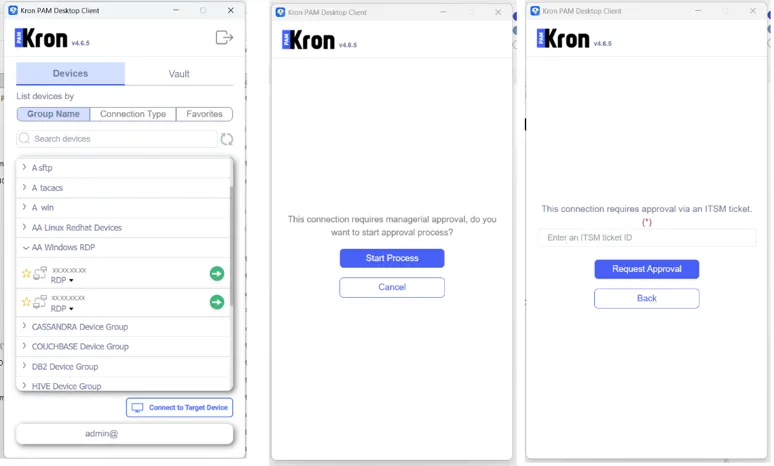
The connection will be established or not based on the approved or rejected value returned from the ServiceCore integration according to the value of the relevant ticket.