Application Triggers
One way to have client applications work with dynamically changed passwords is by restarting the client apps with the new passwords after an account password has been changed. Application triggers can be utilized for this purpose, as the Password Vault connects to the server running the client apps and restarts the apps with the new password. To create application triggers:
- Navigate to Secrets > Application Management.
- Open the Application Triggers tab.
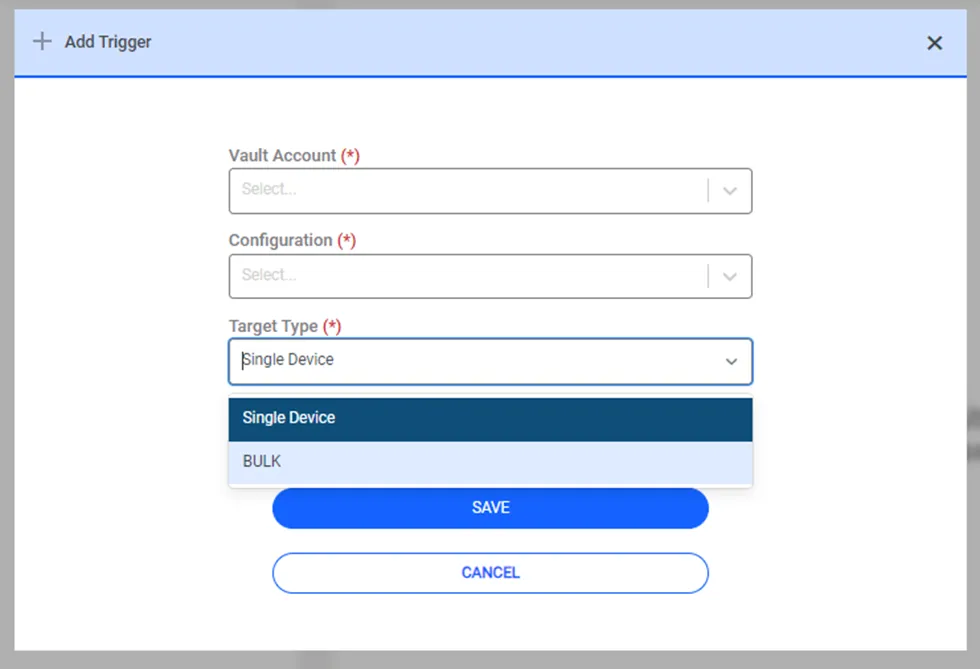
- Click on +Add.
- Select the Vault account used to trigger a restart after the account password change.
- Select the Configuration.
- Select the target type as either Single Device or Bulk.
- Select a device if you selected Single Device target type, or select the Device Group and the Element Type if Bulk target type is selected and click Save.
Each entry in the Application Trigger list expands to show its device and command details, including Hostname, Configuration, Vault Account, Target Type, Device Name, Access Protocol, Element Type Name, Authentication Username, and — for configurations that use one, such as the File strategy — Command Template.
Fields in this expanded detail that hold a long or system-generated value, such as Command Template, show a copy icon on the left when you hover over them. Click the icon to copy the value to the clipboard; Kron PAM briefly displays a Copied confirmation message.
According to the rule in the Application Trigger definition, Trigger Name, Vault Account, and Parameter Name values cannot be defined with the same values multiple times.
When an account password changes and an Application Trigger is set off, a Trigger Processes record is created for each matching device, associated with the relevant Application Trigger definitions.
To search for these process records, use the Trigger Processes tab:
- Navigate to Secrets > Application Management.
- Open the Trigger Processes tab.
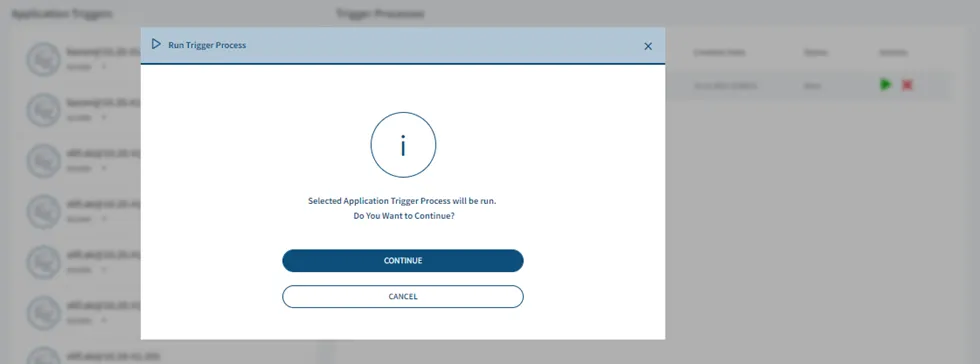
- Select the desired Process.
- Click to Continue.
The Trigger Process table lists the following columns for each record:
Column | Description |
|---|---|
Strategy | The configuration strategy the trigger uses, for example Tenable Configuration. |
Target Device | The device the trigger process ran against. |
Creation Time | The date and time Kron PAM created the process record. |
Log | A short summary of the process result, for example an error message if the process failed. |
Instance Name | The name of the application instance the trigger updated. |
Status | The process result, for example Failed or Success. |
Actions | Available actions for the record. |
Click a row to expand it and view its Start Time and End Time.
Instance Name and Logs appear only as table columns. Kron PAM doesn't repeat them in the expanded row detail, since they're already visible in the table.
The initial status of this process is Waiting. To trigger this process at a specific time, the AapmTriggerProcessJob job must be defined in the Jobs Scheduler:
- Navigate Administration > Jobs Scheduler.
- Open the Trigger List tab.
- Select AapmTriggerProcessJob as the Job.
- Fill in the Trigger Name and Cron Expression fields.
- To enable the job, select Enabled for the Active field and click Save.
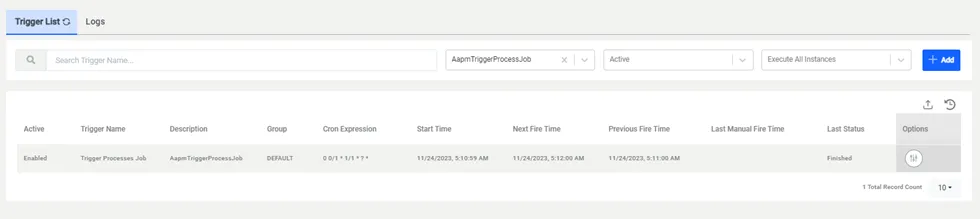
Regardless of how many Triggers are set, running only one Trigger Process Job is enough to run all triggers.
To define the Application Trigger Strategy:
- Navigate to Secrets > Configuration.
- Open the Application Configuration tab.
- Click the Options button to Show Properties.
- Define the properties.