Adding a New Tenant
The host admin user can add a new tenant:
1. Click the +Add button.
2. Fill in the forms with the tenant details (See below for field descriptions). (*) sign refers to the mandatory fields that should be filled in. The host admin user should fill in all fields under the Required Information collapsible section, and optionally might fill in the fields under the Optional Information collapsible section.
3. Locate and upload the tenant’s logo image.
By default, uploading a tenant image is necessary. However, during the tenant creation, if the tenant image uploading is not desired, the host administrator can set the relevant system configuration parameter (aioc.tenant.image.upload.required) to false. By default, this parameter’s value is true.

4. Click Next button to edit the tenant license counts and tenant access duration.
5. Select all the tenant license counts in the defined ranges and click the Save button to complete tenant creation.
The new tenant will now be listed among the other tenants.


The system administrator can set the expiration date of the tenant during the tenant’s creation. If the system administrator doesn’t assign the expiration date of the tenant, the remaining duration of the tenant is set same as the remaining duration of the host.
When a certain amount of time is left before the tenant's expiration date (for example, last 15 days), information about the tenant's expiration date appears at the top of the tenant screen every time, and when the period expires, the tenant is disabled. This value should be parametric; the name of the system parameter should be tenant.expiration.warning.before.day and the default value should be 15. tenant.expiration.warning.before.day parameter should be set on the host environment.
Once a tenant's license expires, the tenant becomes disabled, and all license numbers from the deactivated tenant are included in the host's license (for example, assume that the host has 100 user licenses, 30 of which are from the tenant, 70 are on the host. After the tenant's license expires, the host has a total of 100 user licenses).
New tenant form field description:
Required Information
· Tenant ID (*): The descriptive tenant keyword, which is used in the tenant schema name and during log in (a tenant user should log in as “<username>@<Tenant ID>”). Only lower-case letters should be used. It cannot be changed once the tenant is created.
· Tenant Name (*): The name of the tenant. The tenant’s name is shown in the tenant list on the Tenant Manager screen.
· Admin (Name Surname) (*): The name&surname of the tenant’s admin user.
· Admin Email (*): The email address of the tenant’s admin user. An email with the password setup link is sent after the tenant is created.
· Admin Username (*): The unique username for the tenant’s admin user. This user is created along with the tenant schema and becomes the first user of the new tenant and has access to all administration modules. This user can share these duties with other tenant users once they are added to the tenant schema.Access on Behalf of the Tenant (*): When it is enabled, the host users can have access to the tenant interface and make changes on their behalf, if the host users are imported by means of LDAP or Microsoft Entra ID integration.
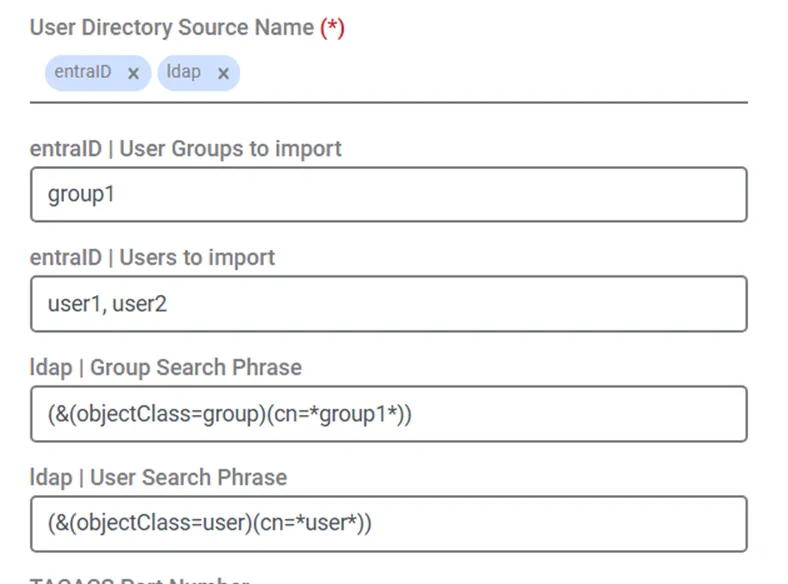
· User Directory Source Name (*): If the Access on Behalf of the Tenant is enabled, the defined user directories on the host environments should be selected at least one in this field. After user directories are selected, the group and user textboxes for the selected user directories will be displayed as blank on this page.
o If the host’s admin user does not fill in these fields (keep them as blank), definitions under LDAP or Microsoft Entra ID integration on the host’s environment will be used depending on the user directory type (either Active Directory or Entra ID directory). For example, if the host gets 5 users from LDAP Integration, the tenant will also have the same 5 users.
o If the host’s admin user fills these fields, the new definitions will be used rather than defined in the host environment. Thanks to this, the host's administrator can differentiate the users received by LDAP or Microsoft Entra ID Integration in the host and tenant environment. For example, if the LDAP integration of the host environment has “(&(objectClass=user)(cn=John))” user search phrase, and during the tenant creation, if the tenant environment has “(&(objectClass=user)(cn=Jane))” user search phrase, the host environment has “John” user, whereas the tenant environment has “Jane” User.
o Additionally, if it is required, the host’s admin user can select a subgroup of users from among those pre-selected for the host’s environment, for the tenant environment. For example, if the LDAP integration of the host environment has “(&(objectClass=user)(cn=*Mary*))” user search phrase, and during the tenant creation, if the tenant environment has “(&(objectClass=user)(cn=*Mary Ann*))” user search phrase, the host environment might have multiple users like: “Mary”, “Mary George”, “Mary Ann” etc.., whereas the tenant environment has “Mary Ann” which is also found in the host environment.
"The access on behalf of" users are only counted in the host’s license. So, if 5 "the access on behalf of" users are defined in 20 tenants, a 5-user slot is occupied only in the host’s license. These users are visible and used; however, they are not counted in the tenants’ licenses.
Optional Information
· Address: The tenant’s street address.
· Business Contact: The name of the business contact for the tenant.
· Phone: The phone number of the business contact for the tenant.
· Admin Phone: The phone number of the tenant’s admin user.
· TACACS Port Number: The port number that the TACACS devices in the tenant schema will be used for the TACACS protocol. The alternative values that appear in this combo box are defined by the multitenancy.tacacs.port.range parameter in the System Config. Man. interface.
· Interface Names: The VRF interfaces that can be used by the tenants.