Remote Access Configuration in Kron PAM
Remote Access Configuration is the page where administrators can set the working hours of vendors in Kron PAM.
Before making configurations, you need to add the cloud server name and allow access to Kron PAM from the cloud server.
Add the cloud server name for the link attached to the email:
- Navigate to Administration > System Config Man
- When the SMS service is set to the following parameter as the Remote Access Portal (cloud server) address and Save:
Parameter Name | Default Parameter Value | Description |
|---|---|---|
rap.cloud.server | This parameter defines the Remote Access Portal address. The parameter can be defined as a URL with IP (e.g., https://34.234.69.53/connect) or as a URL with a domain name (e.g., https://cloudpam.com/connect) |
There are also optional parameters that can be defined to tune the Remote Access Configuration.
Parameter Name | Default Parameter Value | Description |
|---|---|---|
rap.rdp.session.duration.limit.warning.before.min | 1 | This parameter defines how many minutes before the RDP session expires that the timeout warning will be sent. |
rap.ssh.session.duration.limit.warning.before.min | 1 | This parameter defines how many minutes before the SSH session expires that the timeout warning will be sent. |
rap.token.expiration.period | 1 | This parameter indicates the lifespan of a token and is used to prevent the creation of long-term invitation links. |
rap.client.otp.enabled | false | This parameter is used to enable or disable multi-factor authentication (MFA) for the Secure Remote Access login. The default value is false. |
rap.passcode.characters.count | 12 | This parameter shows how many characters are used in the passcode definition. This parameter's value should be numeric, and the default value is 8. If the system admin defines this parameter as 4 or fewer, the passcode is created with 4 characters. |
rap.passcode.only.numeric.text | true/false | This parameter's value should be a boolean, and the default value is false. If this parameter's value is set as true, the passcode only contains numeric values; however, if this parameter's value is set as false, the passcode contains alphanumeric values. |
The passcodes of Remote Access requests are sent via email and optionally SMS services. In the case of the SMS service is employed, the SMS parameters related to Secure Remote Access should be defined on SMS Integrations subscreen of the Integration tab under System Configuration Management screen.
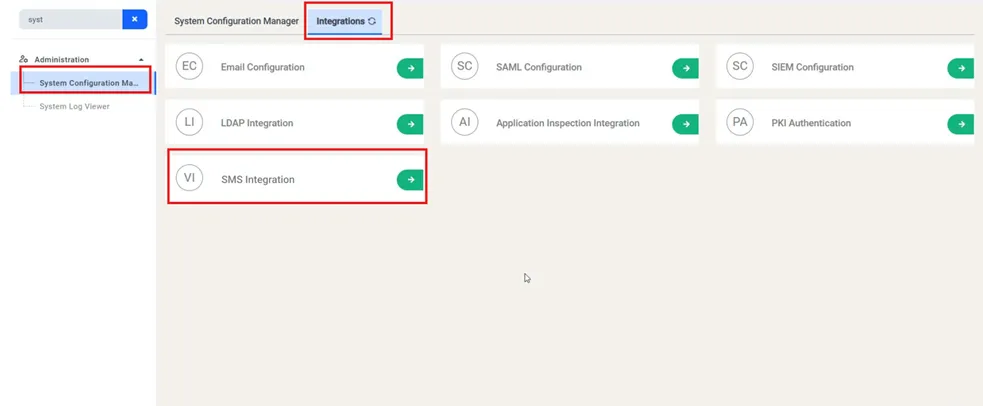
To configure SMS services for Secure Remote Access, please follow the steps explained in the relevant section (Secure Remote Access Integration on KronPAM Administration Section on the Reference Guide).
HTTP SMS Parameters | Example Values |
|---|---|
HTTP URL | https://api.sms.com/v1/send-sms |
HTTP Method | POST or GET |
HTTP Headers | Content-Type:text/xml |
HTTP Body | <request><authentication><username>username</username><password>password</password></authentication><order><sender>KRON</sender><sendDateTime></sendDateTime><message><text> <![CDATA[ Dear %userEid%, Please use the passcode below during login phase of your Secure Remote Access connection. Passcode: %passcode% Secure Remote Access Connection (Access On Web Browser): %connURL% ]]> </text><receipents><number>%phoneNumber%</number></receipents></message></order></request> |
| |
HTTP Encoding | UTF-8 |
HTTP Delimiter | & |
SMPP Integration Parameters | Example Values |
|---|---|
SMS Channel | SMPP |
IP | localhost |
Password | netright (Encrypted) |
System ID | netright |
Source Address | 2222 |
Receive Timeout | 30 |
Port | 16000 |
Then, allow access from the cloud server to Kron PAM.
- Edit the Tomcat CORS file with the cloud URL in the web.xml file.
- Open the web.xml. vi /pam/gui/conf/web.xml
- Fill in the CORS allowed origins field.
- Example; <param-name>cors.allowed.origins</param-name>
- <param-value>https://remote.cloudpam.com</param-value>
- The * wildcard allows all access, but this usage is not recommended for product environments.
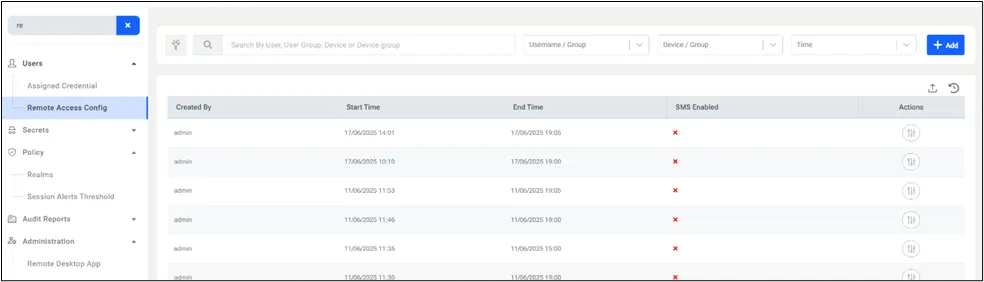
The Remote Access invitations can be created by clicking the +Add button.
The vendor needs to have single.connect.rdp.client.moduleVisibility and
single.connect.cli.moduleVisibility portal rights to make RDP/SSH sessions via Secure Remote Access.
netright.license.moduleVisibility portal right is necessary for the External (RAP Only) Users.
After creating the invitation for the vendor, you can edit and delete the request by clicking the options button to the right of the request.

Admins can verify the details of the request by clicking on the request.

To invite a vendor:
- Navigate to Users > Remote Access Config.
- Click +Add.
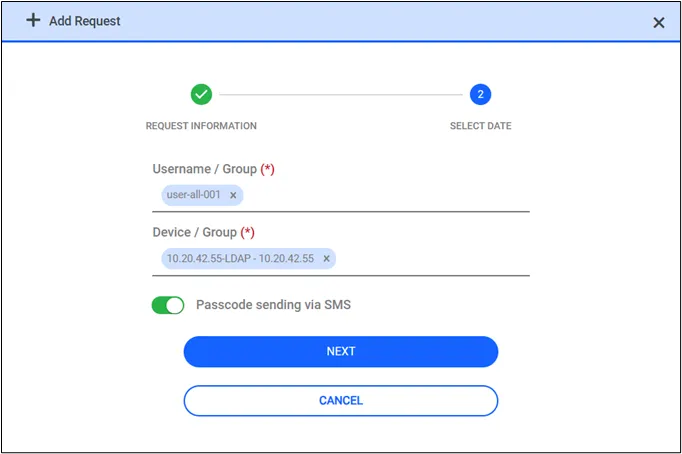
- Fill in the username/group and device/group and optionally select whether the SMS service for sending Remote Access requests, lastly, click Next. If the user hasn’t required realm rights, the warning pops up and says “The realm right is not sufficient for the selected user(s) or user group(s)”.
- Fill in the start and end times and select the days.
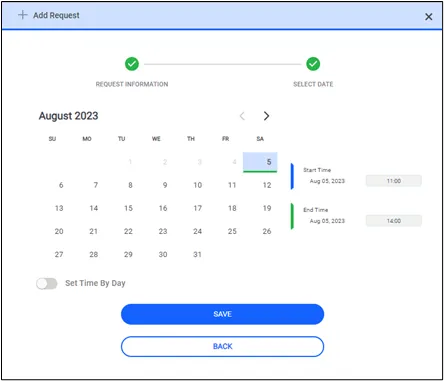
Administrators can also set specific working hours for vendors by enabling Set Time By Day.
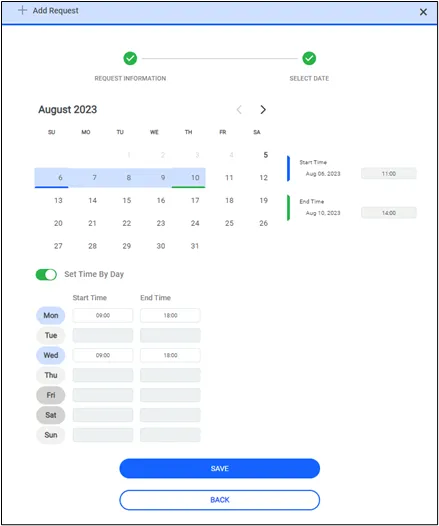
- Click the Save button.
Vendors receive an e-mail with a URL and a passcode.

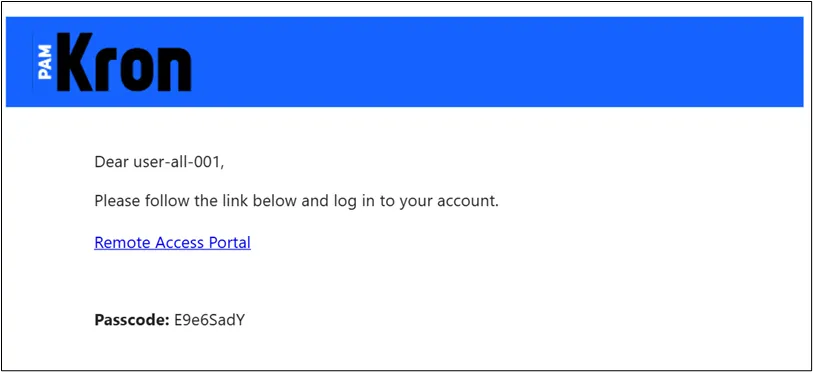
When the working time starts, vendors can click on the URL, enter their passcode first, then enter the Kron PAM user’s password, and start working.
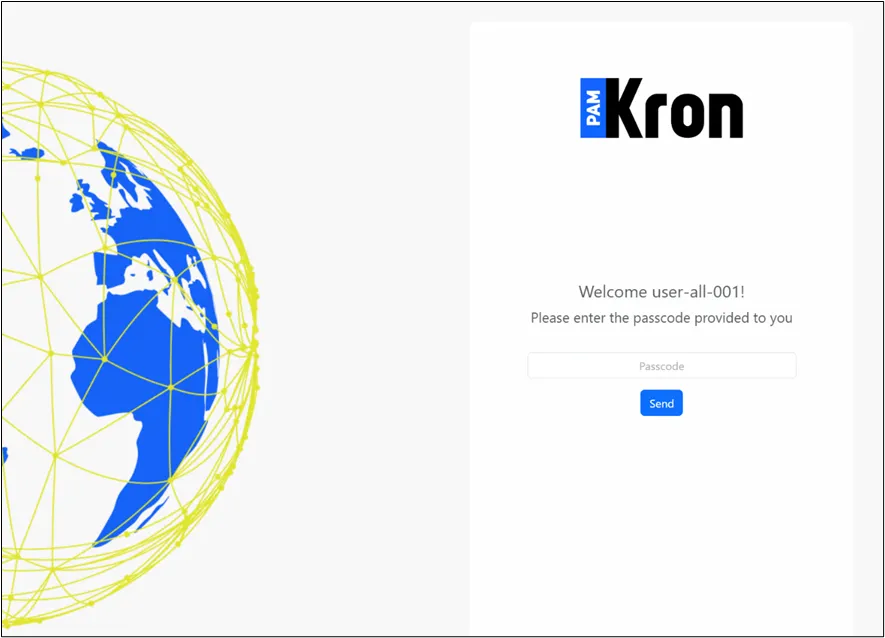
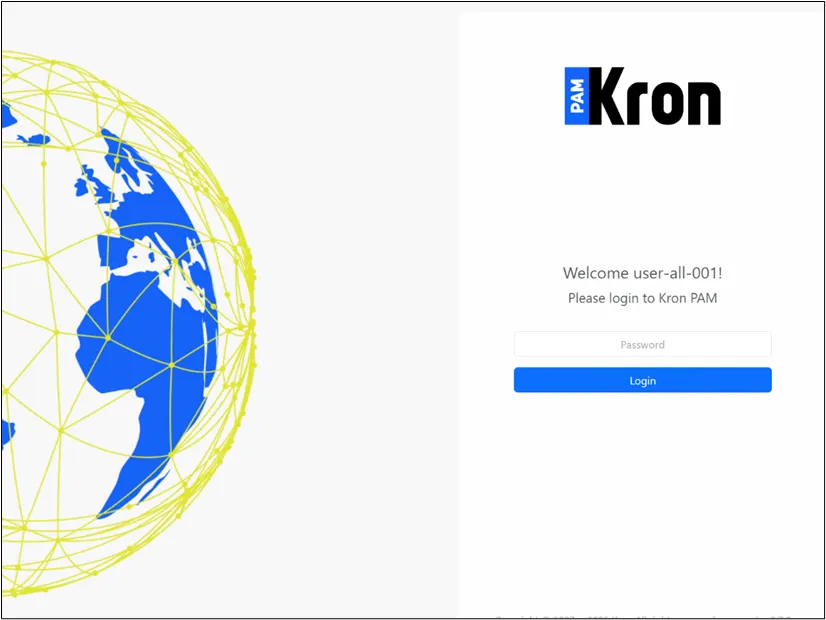
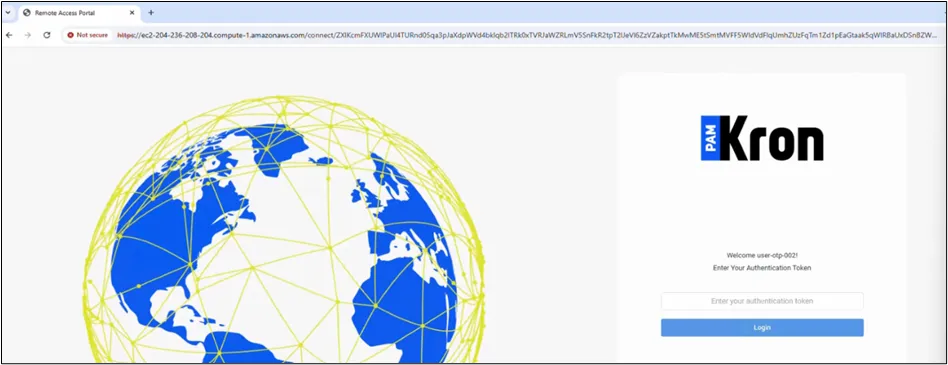
If the OTP parameter (rap.client.otp.enabled) is set to true, after entering the Kron PAM user’s password, the user must enter the OTP value, which is accessible on the Kron PAM Mobile Client Application or email.
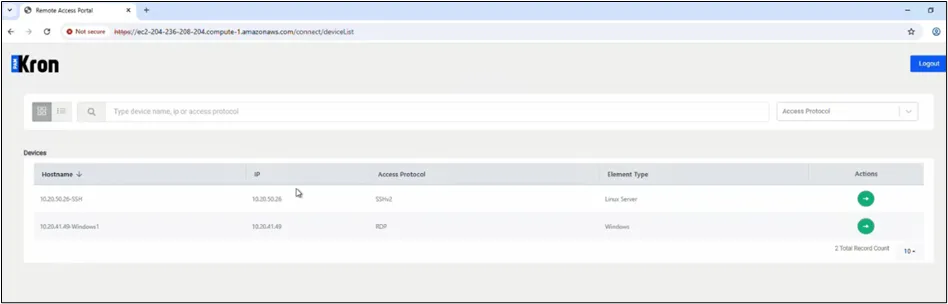
The device list is shown on the Remote Access Portal. The user can access the target device by clicking the Action button.