Windows Native RDP Client
Access using the Windows native RDP client is also supported. For this purpose, follow these steps:
- Install the Kron PAM Desktop Client on the target Windows Server.
- Add your Kron PAM server as the server on Kron PAM’s Desktop Client.
- Navigate to Administration > System Config. Man. and configure the parameters
- below.sc.rdp.download.shortcut.enabled = true
- remote.desktop.environment = X.X.X.X (X.X.X.X is the IP address of the Windows Server you used on the first step)
- rdp.desktop.environment.client.path = (full path of your Kron PAM's Desktop Client installation on your Windows Server. like “C:......\krtsc.exe”)
- Navigate to Devices > Inventory
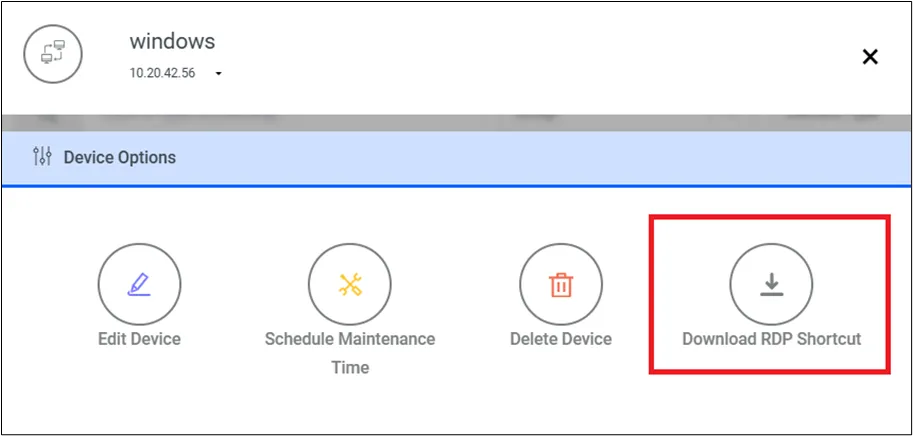
- Options of the RDP device you want to connect > Select Download RDP Shortcut.
- Open > the downloaded RDP Shortcut file to establish the RDP connection.
If a black screen appears during an RDP connection, settings need to be adjusted in the target device's Registry (also applicable in RemoteApp):
Go to this entry:
- HKEY_LOCAL_MACHINE\SOFTWARE\Microsoft\Windows
- NT\CurrentVersion\Terminal Server\TSAppAllowList
- Locate the fDisabledAllowList value in the right pane > set it to "1".
Add the following entry:
- [HKEY_LOCAL_MACHINE\SOFTWARE\Policies\Microsoft\Windows NT\Terminal Services]
- "fAllowUnlistedRemotePrograms"=dword:00000001