Adding / Editing Tenant Licenses
The system administrator can share the licenses with the tenants:
- Navigate to Administration > Tenant Manager.
- For a new tenant: click the Add, then the Edit Licenses or For an existing tenant: click on one of the existing tenant logos, then the View License Usage, then the Edit Licenses.
- Configure the license levels by using the handles or the text boxes. (See license details below)
- Click Save.
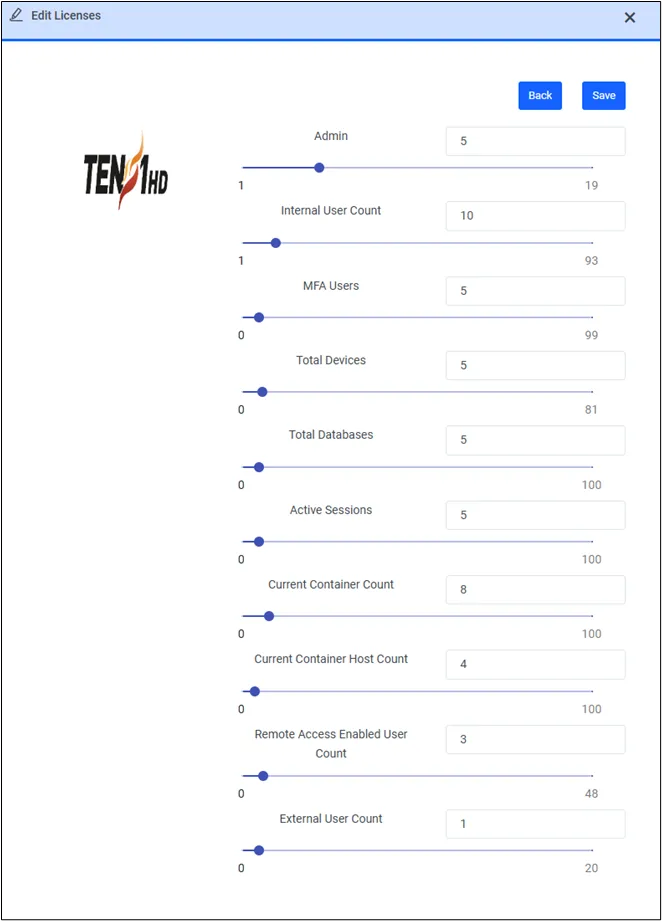
- Admin license: The maximum number of administrator users a tenant can have.
- User license: The maximum number of regular users a tenant can have.
- MFA User license: The maximum number of tenant users that can use multi-factor authentication (MFA).
- Total Device license: The maximum number of devices a tenant can have.
- Total Database license: The maximum number of databases a tenant can have.
- Active Sessions license: The maximum number of active sessions a tenant can have.
- Current Container license: The maximum number of current containers a tenant can have.
- Current Container Host Count license: The maximum number of current container hosts a tenant can have.
- Remote Access Enabled User Count license: The maximum number of Remote Access Enabled User Counts a tenant can have.
- External User Count license: The maximum number of External User Counts a tenant can have.
The text box on the right-hand side of each license label shows the current license limit. It can be increased/decreased by moving the slider, or directly entering the value in the text box.
The number on the bottom-left of each slider shows the number of licenses that are currently in use by the tenant. It cannot surpass the license limit.
The number on the bottom-right of each slider shows the number of licenses that can be given to this tenant by the system administrator. E.g., if the total user licenses are 100 for the company, 10 are being used by their own company, and 20 are given to other tenants, the number displayed here is 100 – (10 + 20) = 70.