Check Out Account Password
Users with the necessary rights to see account passwords need to check out the password to use it. To check out the password:
- Navigate to Secrets > Vault.
- Open the Vault tab.
- Search the Account from the Advanced Search Box.
- Select Check Out Password from the Options menu for the desired account.
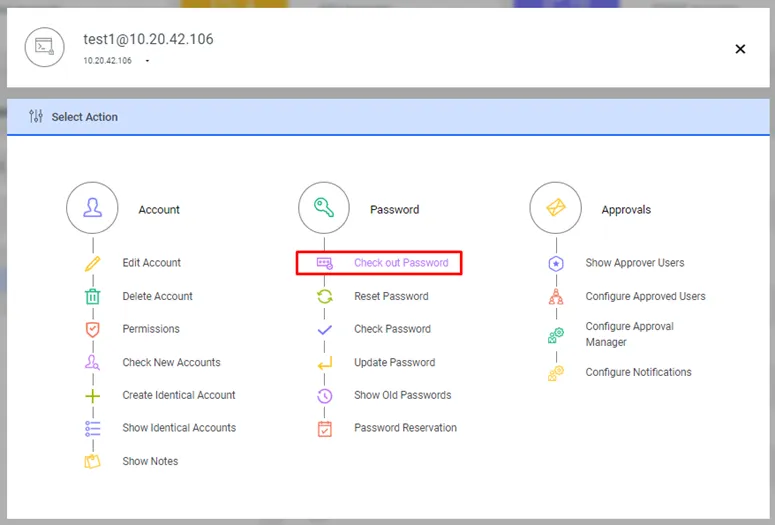
Show Password option in the SAPM Account Options Menu
- Enter Expiration Time and Comments. The password will be changed by Kron PAM after the expiration time. The existing sessions signed into with the old password can be configured to continue after or to be terminated during password changes (the commands to kill the previous sessions should be added to post command scripts. Please refer to section Configuration Properties to Execute Commands After Changing Passwords for more information).
- Click the Show button.
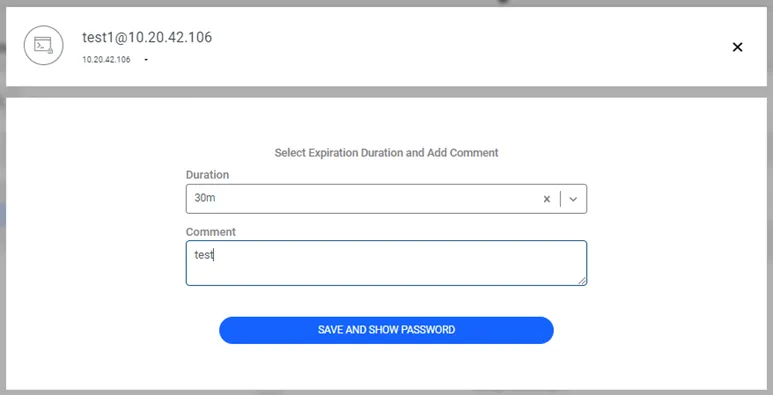
Check Out Password
- The password is shown in a hidden format in the Password pop-up window.
- Click the eye icon to see the password, click the Password text box to copy the password to the clipboard, or click the Send Mail button to send it via email.
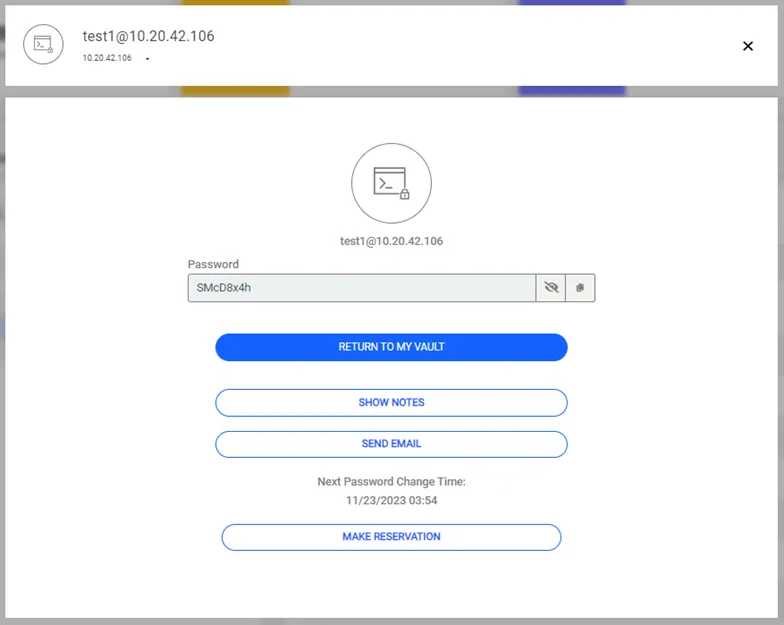
Pop-up check-out password
- Possible values for the Expiration Time are configured with the sapm.show.password.expiration.time.values property from the System Config. Man. screen. The default value is “5m,30m,2h,24h”. Options are separated with commas, “m” stands for minutes, and “h” stands for hours.
- The minimum length of the comment (in characters) that should be entered during password check-out is configured with the sapm.show.password.comment.min.length property from the System Config. Man. screen.
- The Send Mail button that appears in the Check Out Password popup can be removed, by configuring the sapm.account.password.send.mail.button parameter as false in the System Config Manager.