Assigning Kron PAM Credentials to Target System Accounts1
In some cases, Kron PAM users can be connected to target devices with different credentials. In other situations, there can be more than one privileged user account in the target system, with different user groups using different privileged accounts to log in to target systems. The Assigned Credential feature matches the Kron PAM users with target device users.
In the example below, User A wants to connect to the target system with Account X and User B wants to connect to the target device with Account Y. In this case, User A is assigned to Account X, and User B is assigned to Account Y.
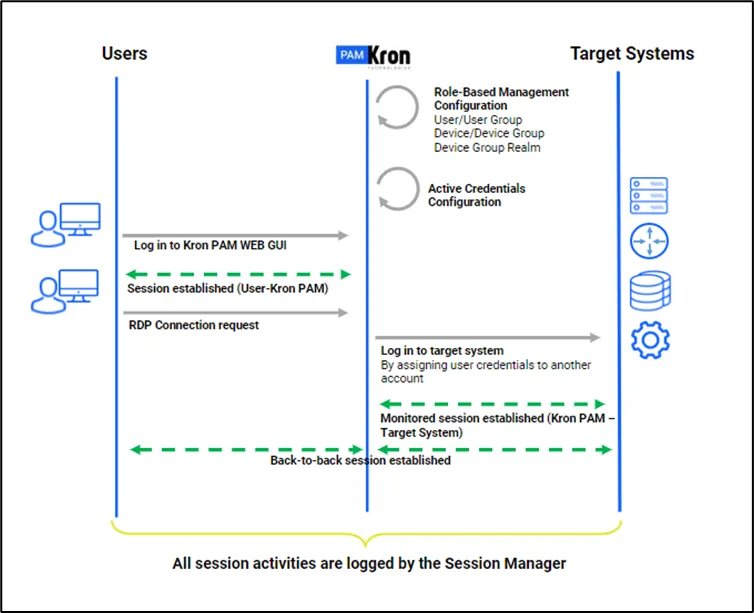
The following steps should be followed to configure the Assigned Credential feature and enable its use for a device group (this device group should be added to a device group realm with the user group including the users, beforehand).
- Log in to the Kron PAM Web GUI as an admin user.
- Navigate to Devices > Inventory > Device Groups.
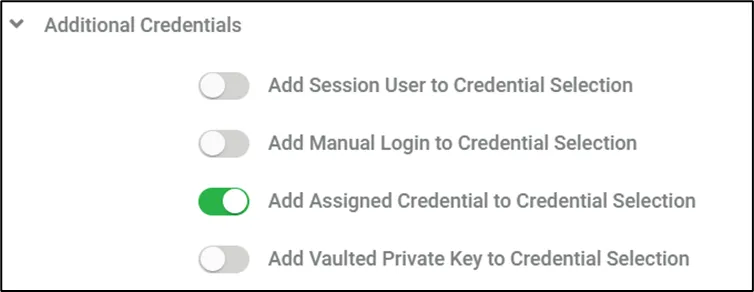
- Select the device group and select the Additional Credential option.
- Save the Add Assigned Credential to Credential Selection property as true.
To set up assigned credentials for different users, first, save the SAPM accounts. Once these accounts are saved, follow these steps:
- Log in to the Kron PAM Web GUI as an admin user.
- Configure SAPM accounts for the target system.
- Navigate to Secrets > Vault > Add.
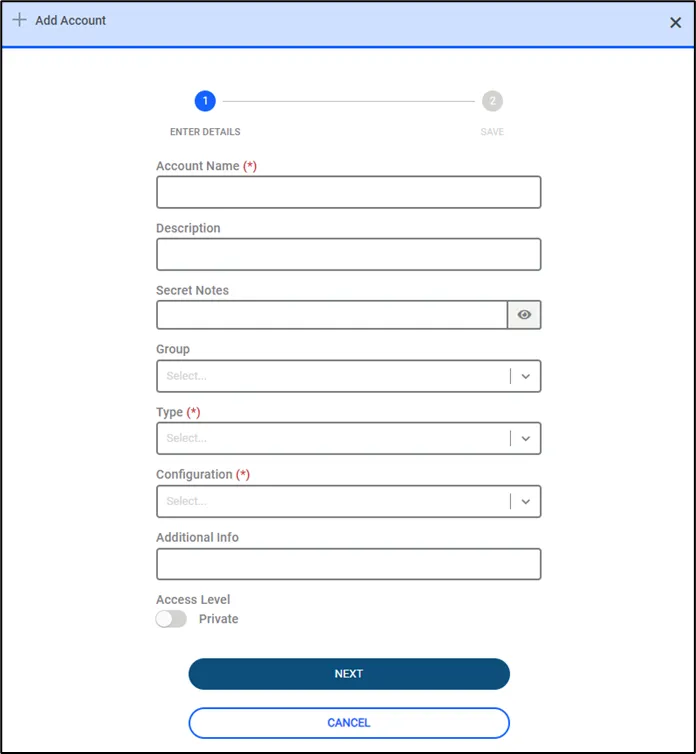
- After filling in the boxes in the figure below, click next and fill in Host (IP/Name). The matching IP number will appear there.
- According to the selection above, either select the Vault Account and click Save.
- Navigate to Users > Assigned Credential > Add > Add Credential.
- From the User Selection tab, you can select the Assigned Credential for a User or User Group here.
After completing these steps, whenever the Kron PAM users defined in the steps above are attempting to open an RDP session, the assigned credentials can be used for the connection.