Secure Remote Access Connector Configuration
The following steps should be read carefully to successfully install Secure Remote Access Connector on the regarding machine:
Check the Secure Reboot Enabled before the installation by running mokutil --sb-state command.
In case the secure reboot is enabled, it might cause an error during the Wireguard installation. Please disable it to continue the installation!!!
1. Download the Secure Remote Access Connector’s installation script on the machine that will be used for Secure Remote Access Connector. The support team can provide the installation script. After downloading the script, unzip the installation script on the machine. The user can use unzip command to extract the files from the installation script file.
Linux CLI | [root@con~]# unzip RAP_MTC_ONPREM-1.2.0.zip |
|---|
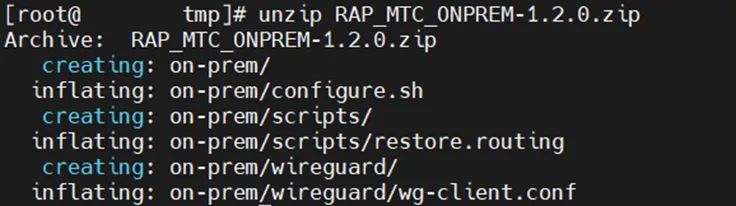
In case of bash: unzip: command not found error being shown, the unzip package should be installed via sudo dnf install -y unzip command.
If somehow the user needs to start the script again (maybe, because of the wrong input or missing file etc…), please remove all installation files except for compressed Secure Remote Access Connector’s installation script file and unzip the compressed installation script file again. After this you can execute the script.
We highly recommend this method since the extracted files might be modified after the script execution for the first time, and executing the script with modified files might cause the faulty installation!
2. Navigate to the on-prem directory:
Linux CLI | [root@con~]# cd on-prem/ |
|---|

3. Run the configuration script:
Linux CLI | [root@on-prem~]# sh configure.sh |
|---|

In case you need to set script permissions to execute it, you need to run chmod +x configure.sh command.
You need root privileges to run this script.
4. The Secure Remote Access Connector’s installation script should be restarted after the forced reboot. The installation script asks user either:
a. For the first-time installation on the premise, the whole Secure Remote Access Connector should be configured from scratch, thus, the first option should be selected by entering 1 and pressing the enter key.

The Secure Remote Access Connector’s installation script asks several configuration details:
o The Wireguard IP address that will be assigned to Secure Remote Access Connector’s side,
o AWS public IP address of Remote Access Portal (RAP) environment,
o The port number of Wireguard,
o The IP segment of Wireguard,
o The public IP address of Kron PAM,
o The public IP address of Secure Remote Access Connector,
o A public key generated by the Remote Access Portal (RAP)’s script.
Connector Configuration Descriptions | Example Values |
|---|---|
Wireguard IP address that will be assigned to the Secure Remote Access Connector’s side | 10.0.0.2 |
AWS public IP address of Remote Access Portal (RAP) environment | 54.173.245.231 |
The port number of Wireguard | 51820 |
The IP segment of Wireguard | 10.0.0.0/29 |
The public IP address of Kron PAM | 10.20.42.129 |
The public IP address of Secure Remote Access Connector | 10.20.42.17 |
A public key generated by the Remote Access Portal (RAP)’s script | BBBBBBB28P4pEn/ya2fJ0NgUgIWsV40NMBRyiz3iRI= |
After every information are filled in, the user should press y to continue, however, if the user fails to fill in every information successfully (either missing or wrong info), the user can press n to reenter information again.
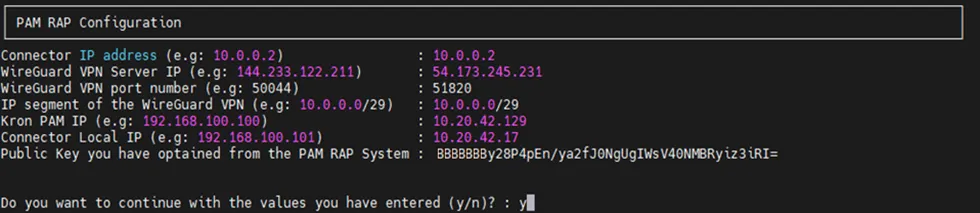
Once the Secure Remote Access Connector installation asks the user to enter the public key, if the user doesn’t know the public key generated by the Remote Access Portal (RAP)’s installation script yet, the user can set temporary public key for now (e.g., AAAAAAA0NN0751JBnXoJ5R8M3uTw8NmAkTGI5bLy4=).
But please do not forget to set the public key by using the Secure Remote Access Connector’s script (please check 4.b of this section below), after the Remote Access Portal (RAP)’s script generates a public key.

At the end of Secure Remote Access Connector’s script, the public key generated by this script is ready to use on the Remote Access Portal (RAP) environment (e.g., CCCCCq8tpC6nMNEzIzUtNxNuVePGDPvYF6rFHYBdmU= ).
Please do not forget to add this info on the Remote Access Portal (RAP) environment by using Remote Access Portal (RAP)’s installation script (please check 6.b at the Section-3.2).
b. Once the Secure Remote Access Connector has been fully installed, only one configuration is missing here regarding public key that would be generated by the Remote Access Portal (RAP)’s installation script. If the user executes the Remote Access Portal (RAP)’s installation script on the cloud (please, check 6.a at the Section-3.2), it generates a public key which would be used in the Secure Remote Access Connector here, thus now this option can configure the secure tunnel configuration file with the generated public key from Remote Access Portal (RAP)’s side.
The user should select the second option by entering 2 and pressing the enter key.

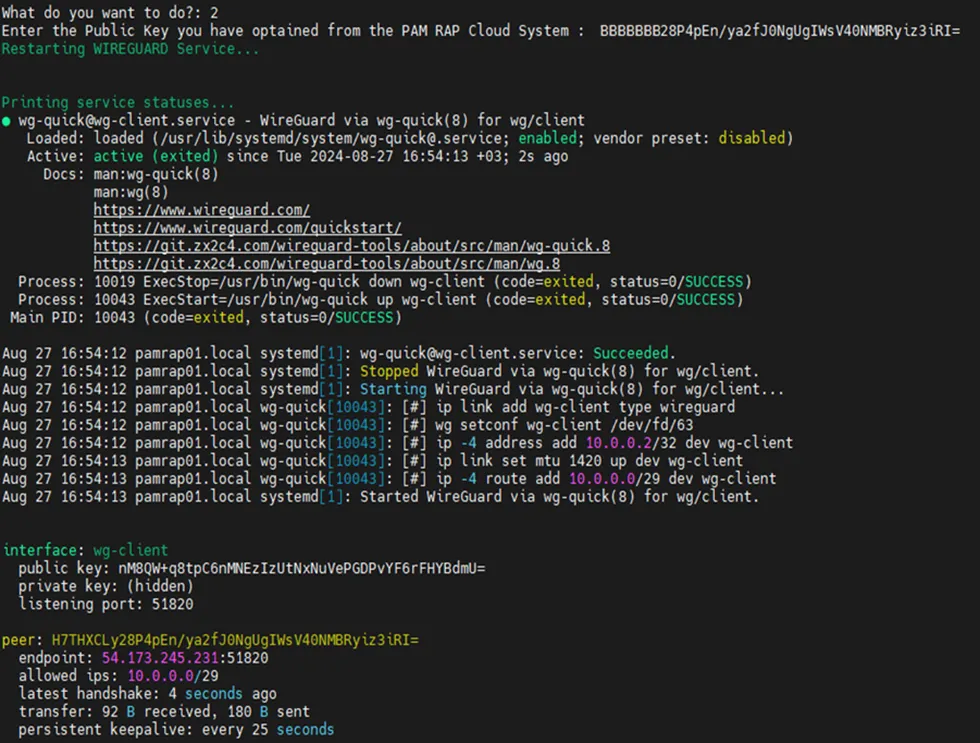
Set the public key data of the secure tunnel configuration file with a public key generated by the Remote Access Portal’s installation script
(e.g., BBBBBBB28P4pEn/ya2fJ0NgUgIWsV40NMBRyiz3iRI=).