Kron PAM Configuration
An application token must be created to allow UiPath to securely retrieve credentials from Kron PAM. This token acts as an access bridge between UiPath Orchestrator and the specific credentials stored in Kron PAM.
Create Application Token for UiPath Orchestrator
Follow the steps below to configure Kron PAM to grant access to UiPath:
Step 1: Navigate to Application Token Interface
- Log in to the Kron PAM portal.
- Navigate to Secrets > Vault.
- Open the Application Token tab.
- Click the +Add button.
Step 2: Fill in Application Token Details
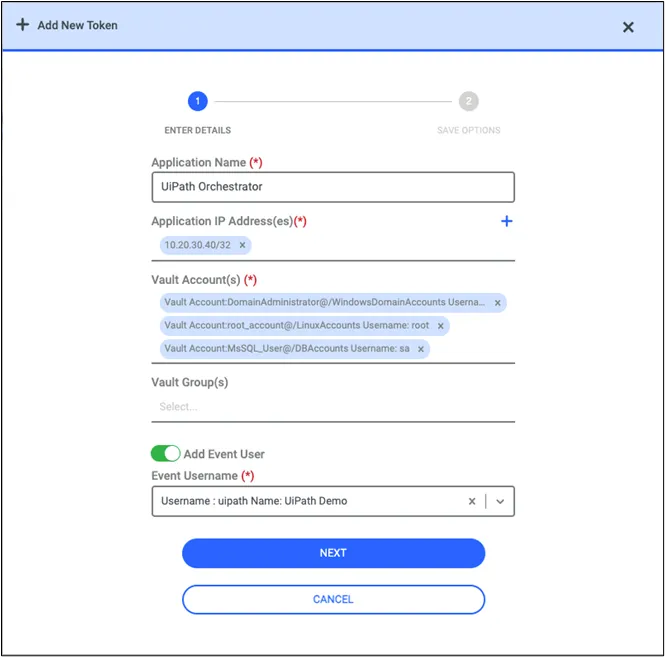
In the Add New Token form, enter the following:
- Application Name: This is the display name for the application token.
- Application IP Address(es): Enter the IP address of your UiPath Orchestrator server. (Example: 10.20.30.40/32)
- Vault Account(s): Select the accounts that UiPath will retrieve from Kron PAM.
- Vault Group(s) (Optional): If you're using vault groups, select the relevant group(s) here. Otherwise, leave it empty.
- Add Event User: Toggle this ON to associate actions in logs with an event user.
- Event Username: Choose or create a user to represent UiPath in logs and reports.
Once all required fields are completed, click Next to proceed to token saving and permissions configuration.
Step 3: Configure Token Restrictions and Security Level
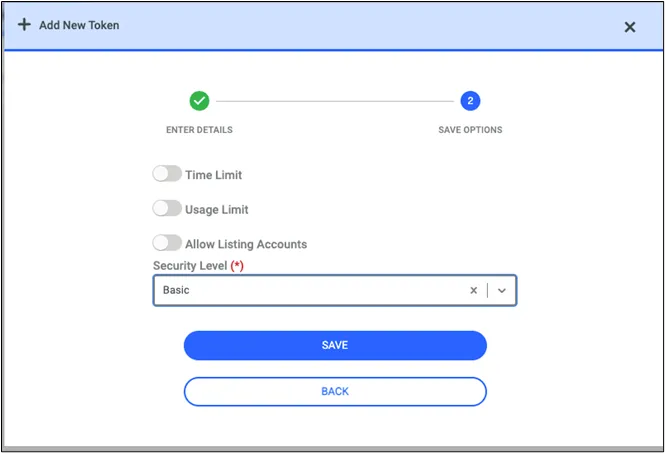
In the Save Options screen, configure the following settings:
- Time Limit (Optional): If enabled, sets an expiration duration for the token. For most UiPath integrations, leave this disabled unless there's a policy requiring time-based rotation.
- Usage Limit (Optional): Restricts how many times the token can be used. Leave disabled for continuous integration.
- Allow Listing Accounts (Optional): Controls whether the token can query account lists from Kron PAM. Disable this unless required by the UiPath plugin.
- Security Level (Required): Select Basic from the dropdown.
Click the Save button to create the application token. The token will now be active and available through the UiPath Credential Provider Plugin.