Integrate with Jenkins
Integration Overview
The integration relies on four building blocks that work together:
- A Kron PAM vault account (for example, a Linux or Windows account) whose secret Jenkins needs to retrieve.
- A Kron PAM Application Token, scoped to the Jenkins host address and bound to the vault account, used to authenticate API requests.
- The Kron PAM Secret Plugin, installed in Jenkins, which exposes a "Kron PAM Secret Credential" credential type.
- A Jenkins credential of that type, configured with the AAPM REST URL and the request payload (including the application token), which is then bound to a job as an environment variable.
Step-by-Step Guide
Step 1 – Locate the Target Account in Kron PAM Vault
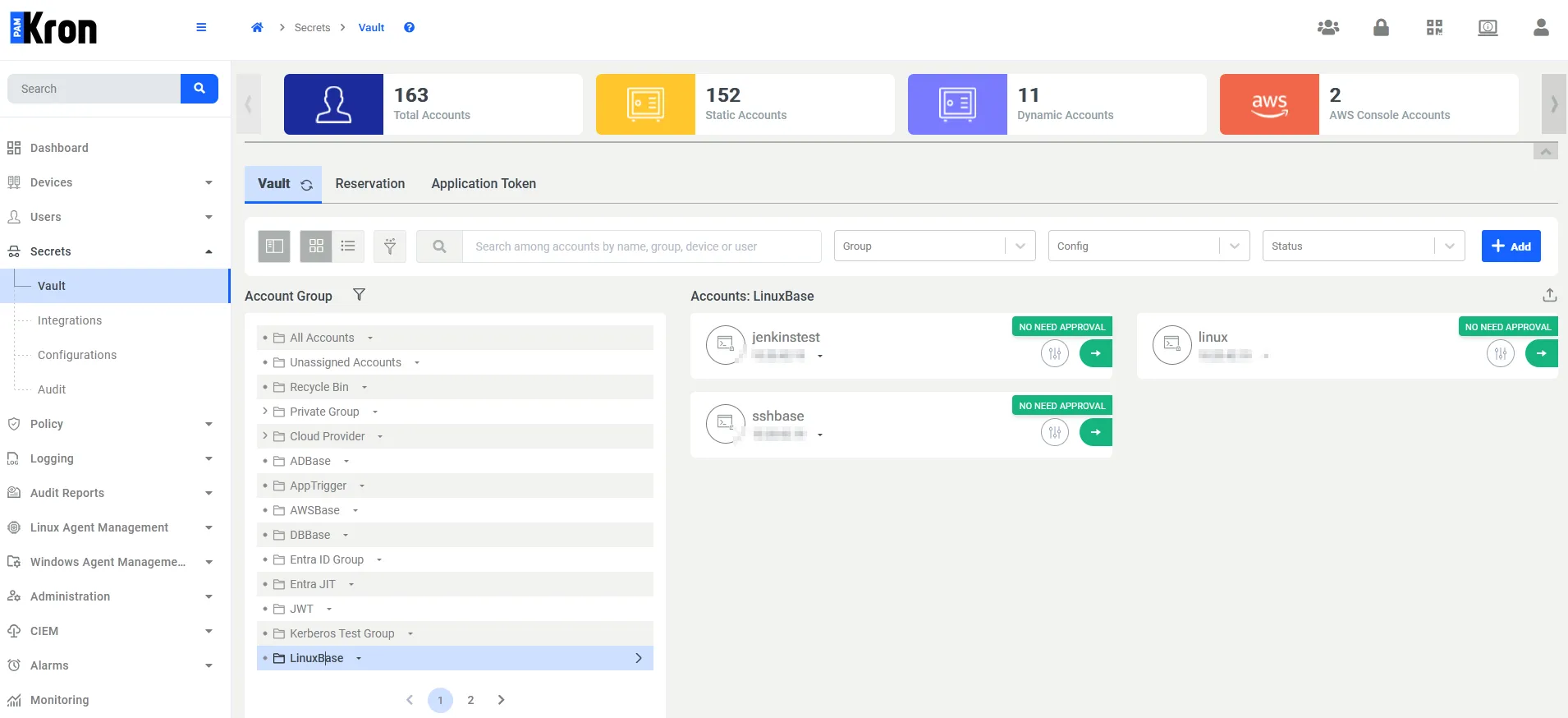
In the Kron PAM console, navigate to Secrets > Vault and locate the account group and account that Jenkins will need to access. In this example, the jenkinstest account under the LinuxBase account group is used.
Step 2 – Create an Application Token for Jenkins
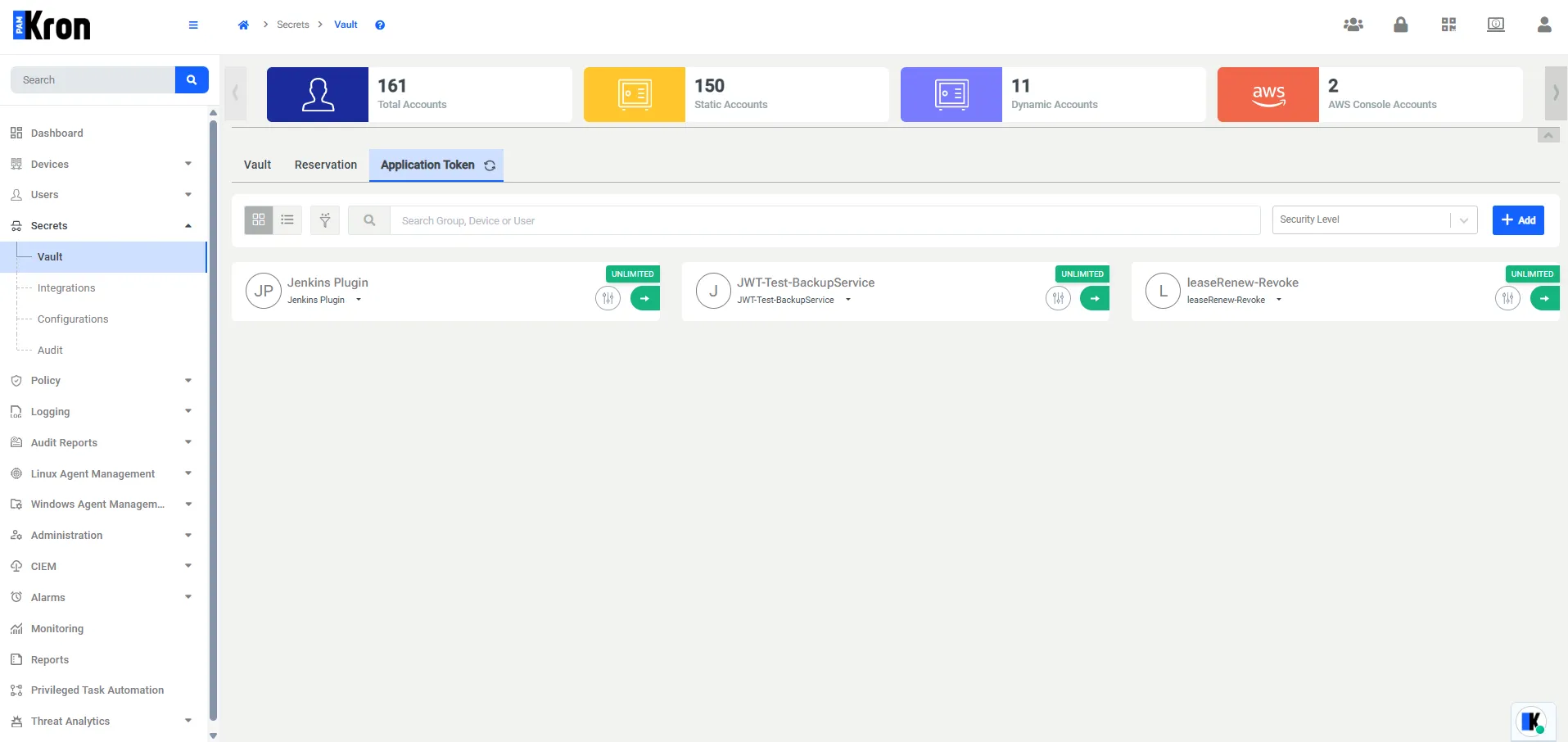
Application tokens allow external applications, such as Jenkins, to authenticate to Kron PAM AAPM REST endpoints. Navigate to Secrets > Vault > Application Token and create a new token.
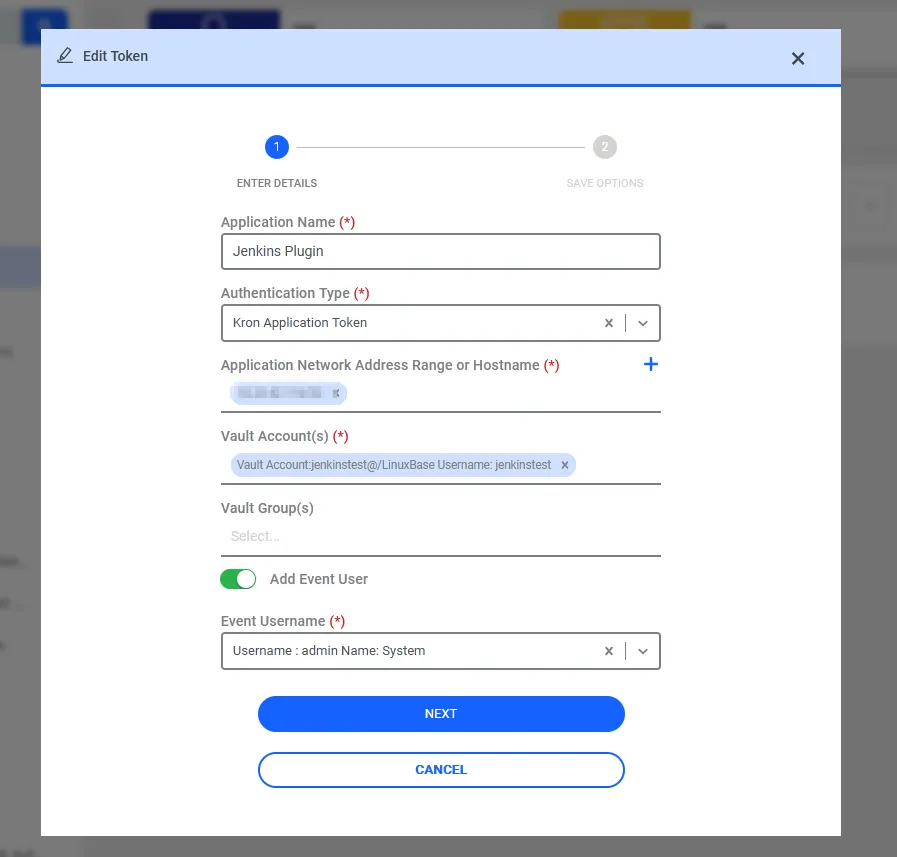
- Enter an Application Name (e.g. Jenkins Plugin).
- Set the Authentication Type to Kron Application Token.
- Enter the Application Network Address Range or Hostname of the Jenkins host (e.g. <jenkins-host-ip>/32). This restricts the token to requests originating from that address.
- Select the Vault Account(s) that Jenkins should be able to retrieve (e.g. jenkinstest@/LinuxBase).
- Optionally enable Add Event User and select an Event Username for audit purposes, then click Next.
After completing the wizard, Kron PAM generates the application token value. This token must be copied and stored securely — it is required in the next steps and cannot be retrieved again after the dialog is closed.
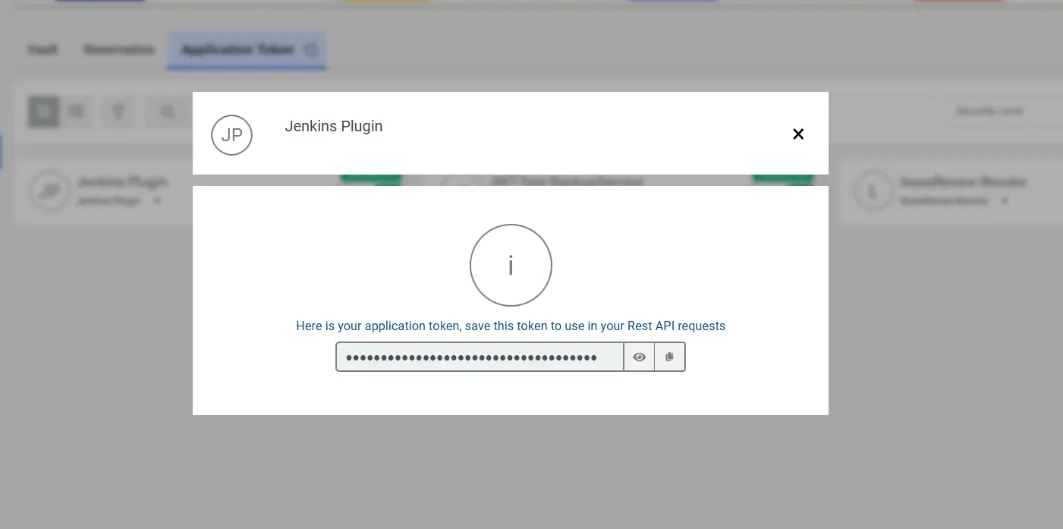
The token value in Figure 4 has been redacted before publishing this document, because it is a live credential.
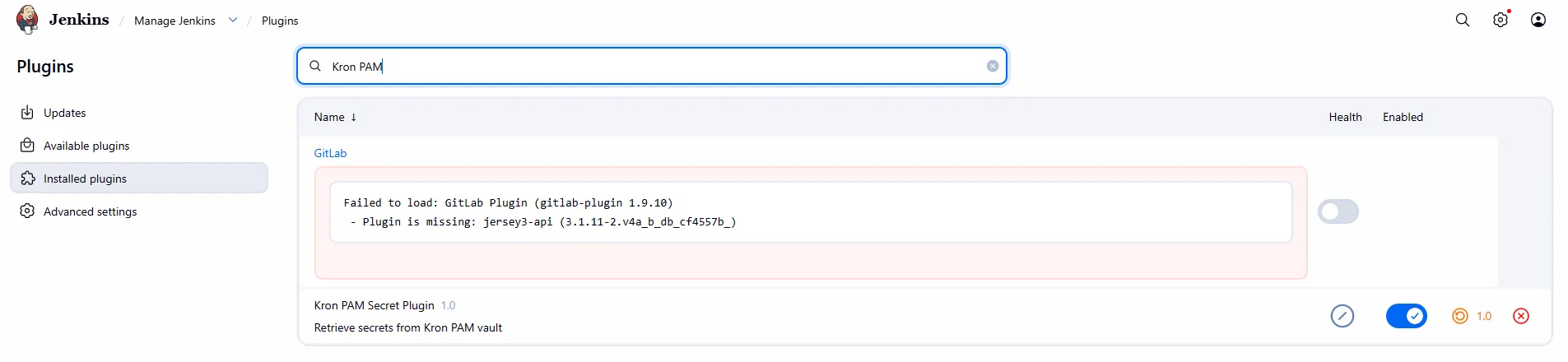
Step 3 – Install and Verify the Kron PAM Secret Plugin in Jenkins
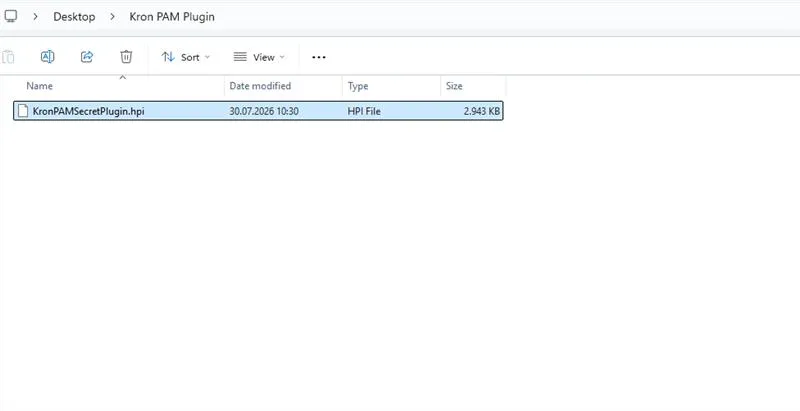
The Kron PAM Secret Plugin must be installed in Jenkins before the new credential type becomes available. If the plugin is not yet installed, download the KronPAMSecretPlugin.hpi file and upload it manually:
- Log into Jenkins as an administrator.
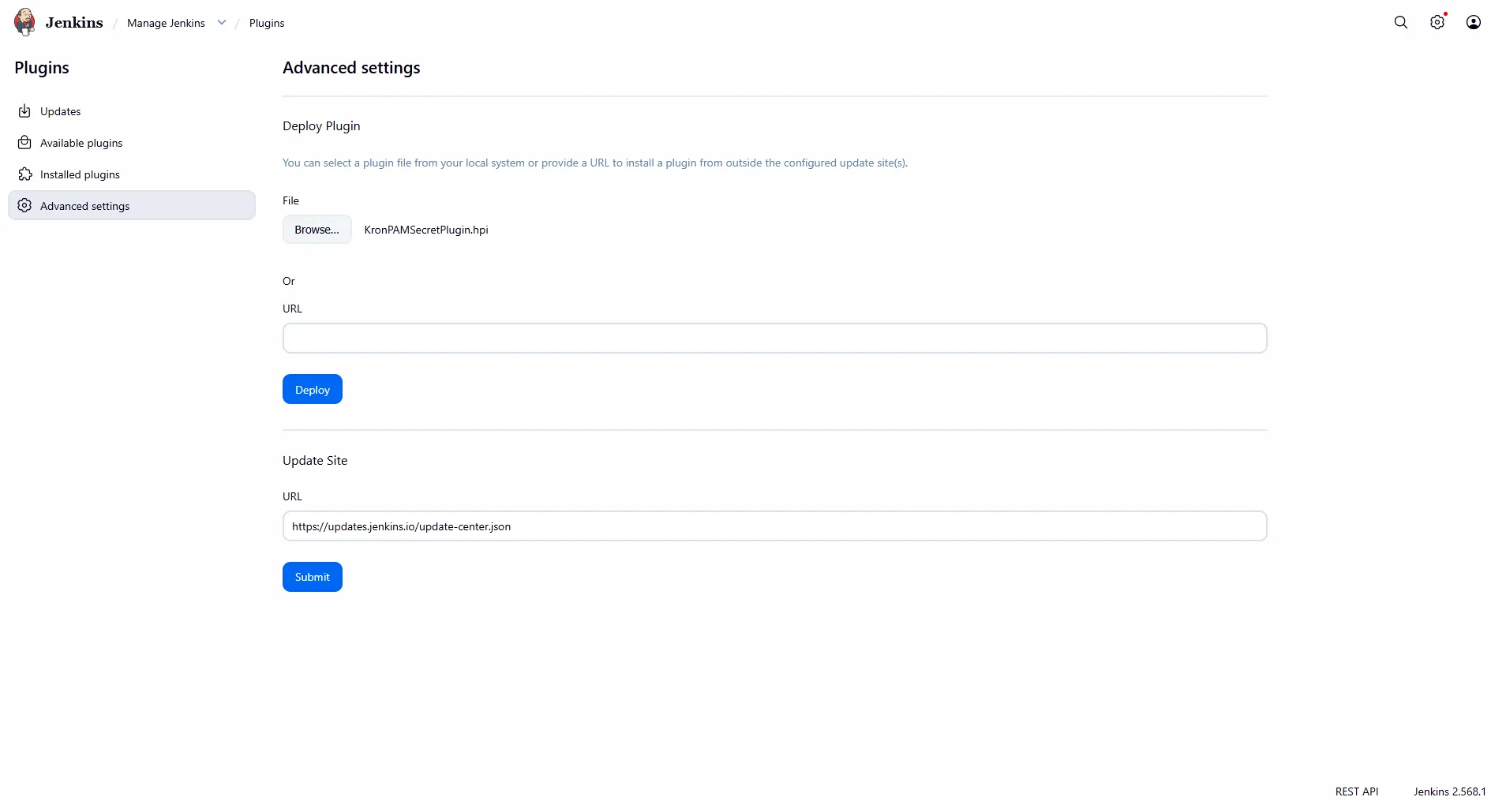
- Navigate to Dashboard > Manage Jenkins > Manage Plugins > Advanced tab.
- In the Upload Plugin section, browse for KronPAMSecretPlugin.hpi and click Upload.
- Restart Jenkins after the plugin has been uploaded.

Step 4 – Add a Kron PAM Secret Credential in Jenkins
With the plugin enabled, a new credential type becomes available. Navigate to Dashboard > Manage Jenkins > Credentials > System > Global credentials (unrestricted) > Add Credentials, and select Kron PAM Secret Credential from the list of credential kinds.
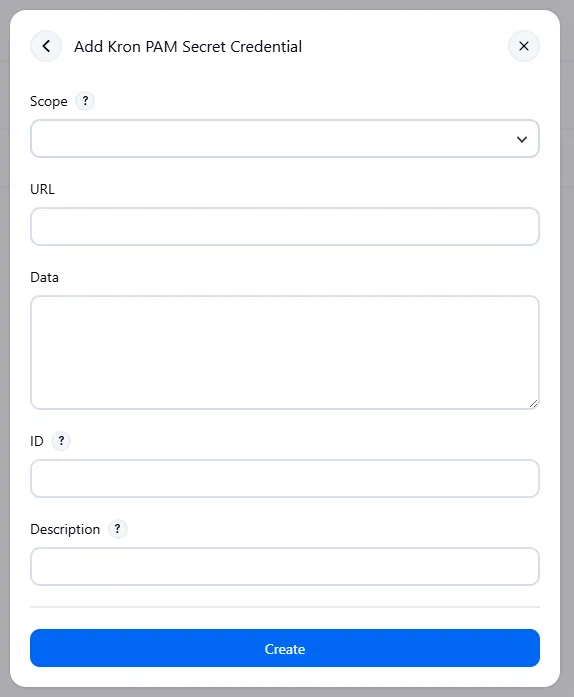
Jenkins then presents the Kron PAM Secret Credential form, to be completed in the next step.
Step 5 – Configure the Credential Data
The credential definition tells Jenkins which AAPM REST endpoint to call and what request payload to send, including the application token generated in Step 2.
- Set Scope to GLOBAL (Jenkins, nodes, items, all child items, etc.).
- Set URL to the AAPM password request endpoint of your Kron PAM host, for example: https://[kron-pam-host]/aioc-rest-web/rest/aapm/request/password
- In Data, provide a JSON payload identifying the account and request options, including tenantId, comment, passwordChangeRequired, passwordExpirationInMinute and the application token.
- Set ID to a recognizable name (e.g. AAPM SECRET) - this is the identifier used later when binding the credential to a job.
- Click Create (or Save, when updating an existing credential).
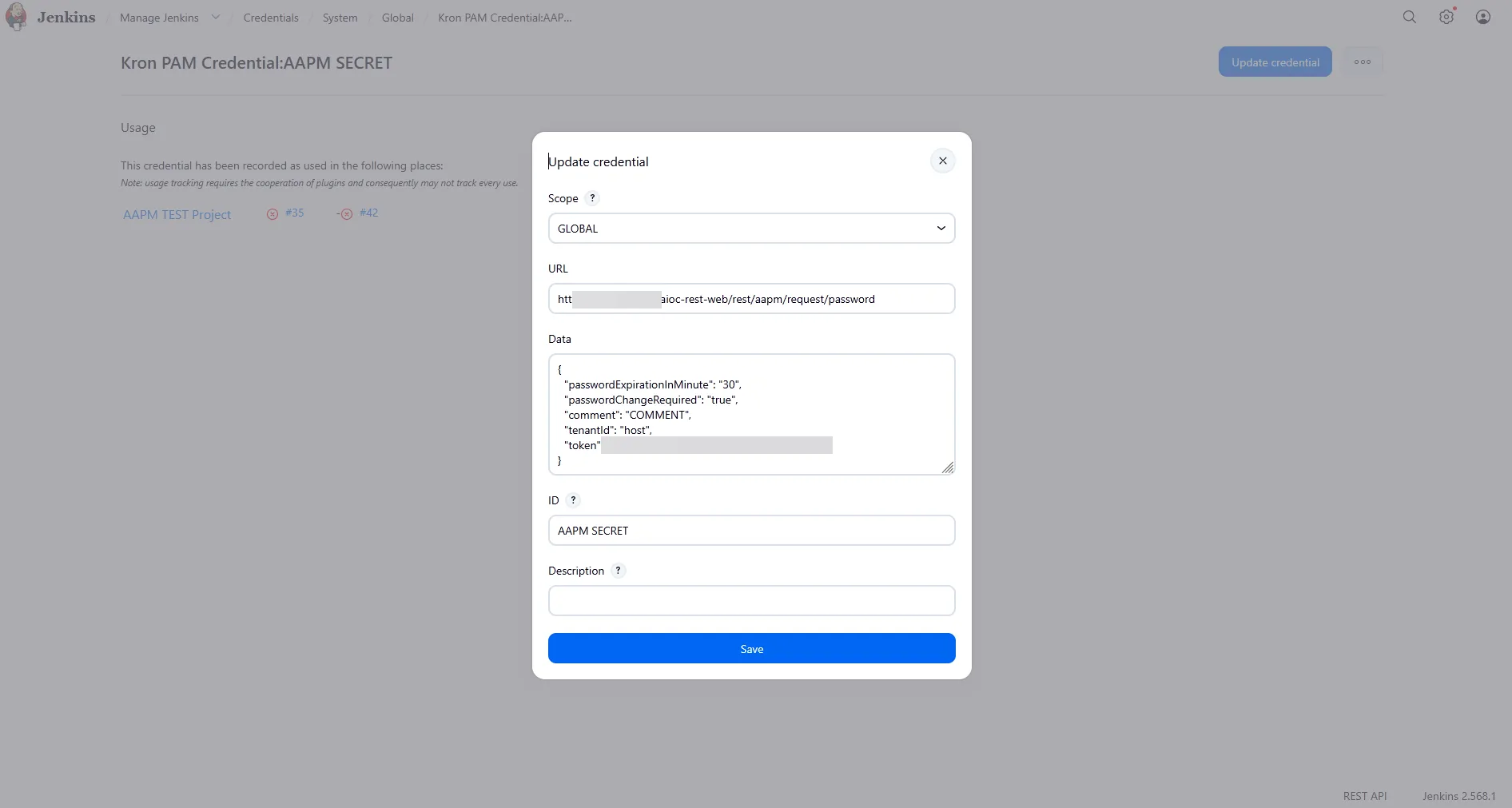
The token value in Figure 11 has been redacted for the same reason as Figure 4. In the live environment this field contains the full application token generated in Step 2.
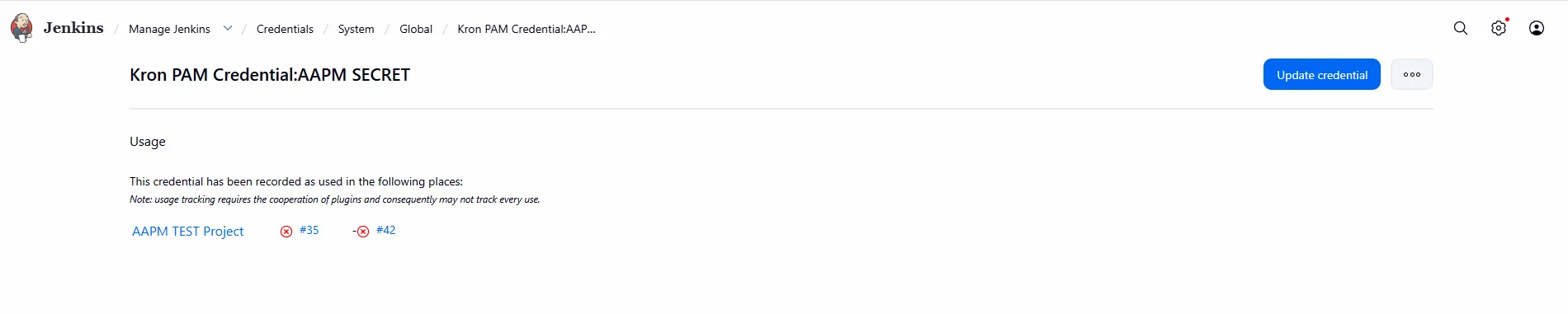
Step 6 – Confirm Credential Usage
Opening the credential detail page shows a Usage section, which lists the Jenkins jobs referencing it. This is useful for auditing which pipelines depend on a given Kron PAM secret.
Step 7 – Bind the Secret to a Jenkins Job
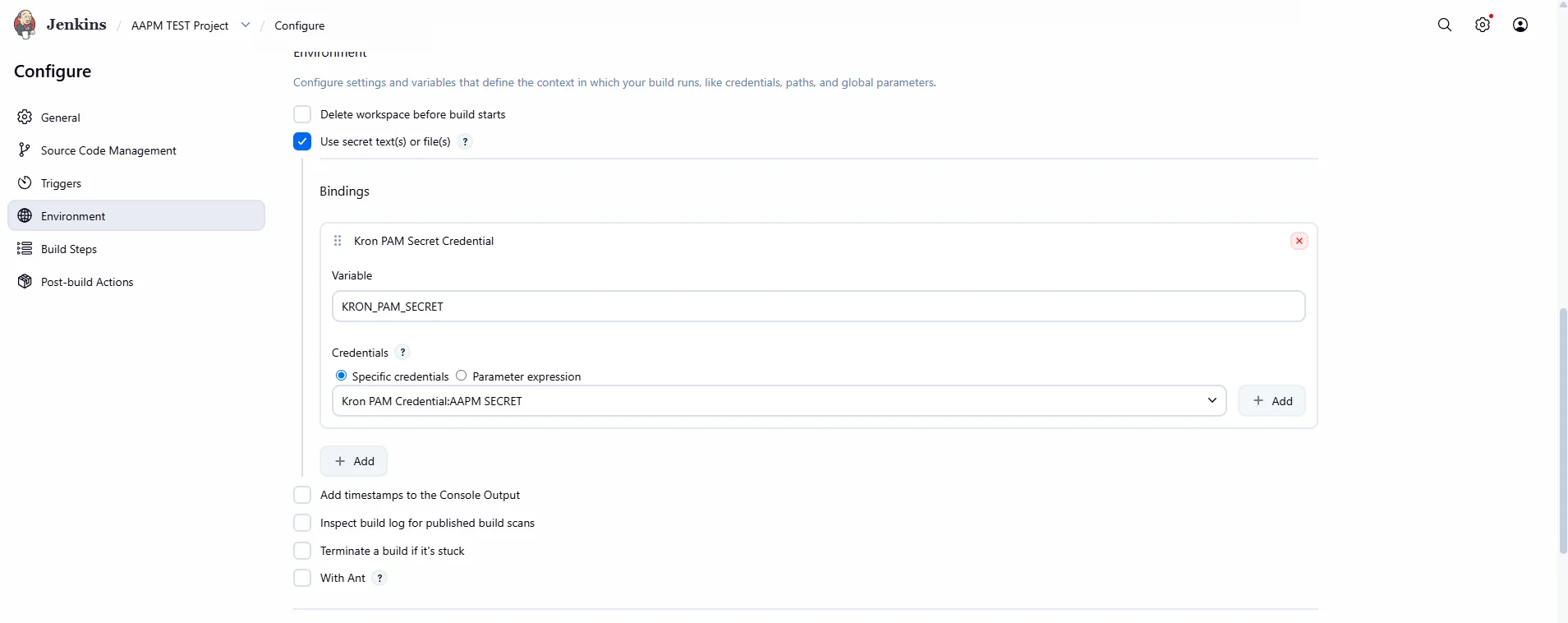
Open the target project (freestyle project in this example) and click Configure. Under the Environment section, enable Use secret text(s) or file(s), then add a binding:
- Under Bindings, click Add and select Kron PAM Secret Credential.
- Set the Variable name that the build steps will use to reference the secret (e.g. KRON_PAM_SECRET).
- Under Credentials, choose Specific credentials and select the Kron PAM Credential created in Step 5 (e.g. Kron PAM Credential:AAPM SECRET).
(Optional) Additional credentials can be bound the same way using the Add button.
Step 8 – Use the Secret in a Build Step
The bound variable is injected as an environment variable into the build step, so it can be referenced without ever appearing in plain text in the job configuration. In this example, an Execute Windows batch command build step uses the secret to authenticate an SSH session via plink:
plink -ssh -hostkey "ssh-ed25519 255 SHA256:..." [email protected] -pw %KRON_PAM_SECRET% -batch cat /home/jenkinstest/jenkinsfile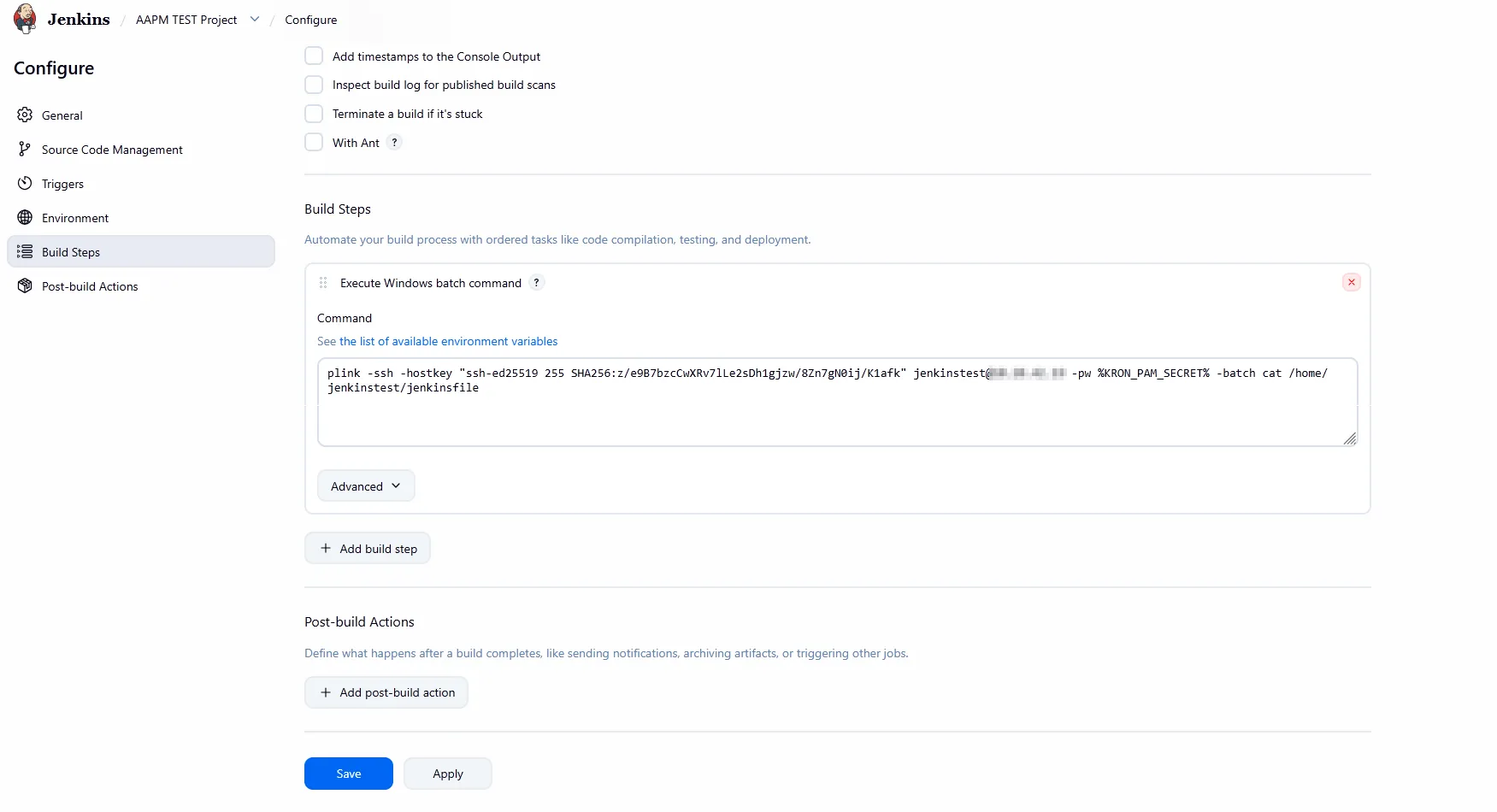
Save (or Apply) the job configuration once the build step is complete.
Step 9 – Verify via Kron PAM Audit Logs
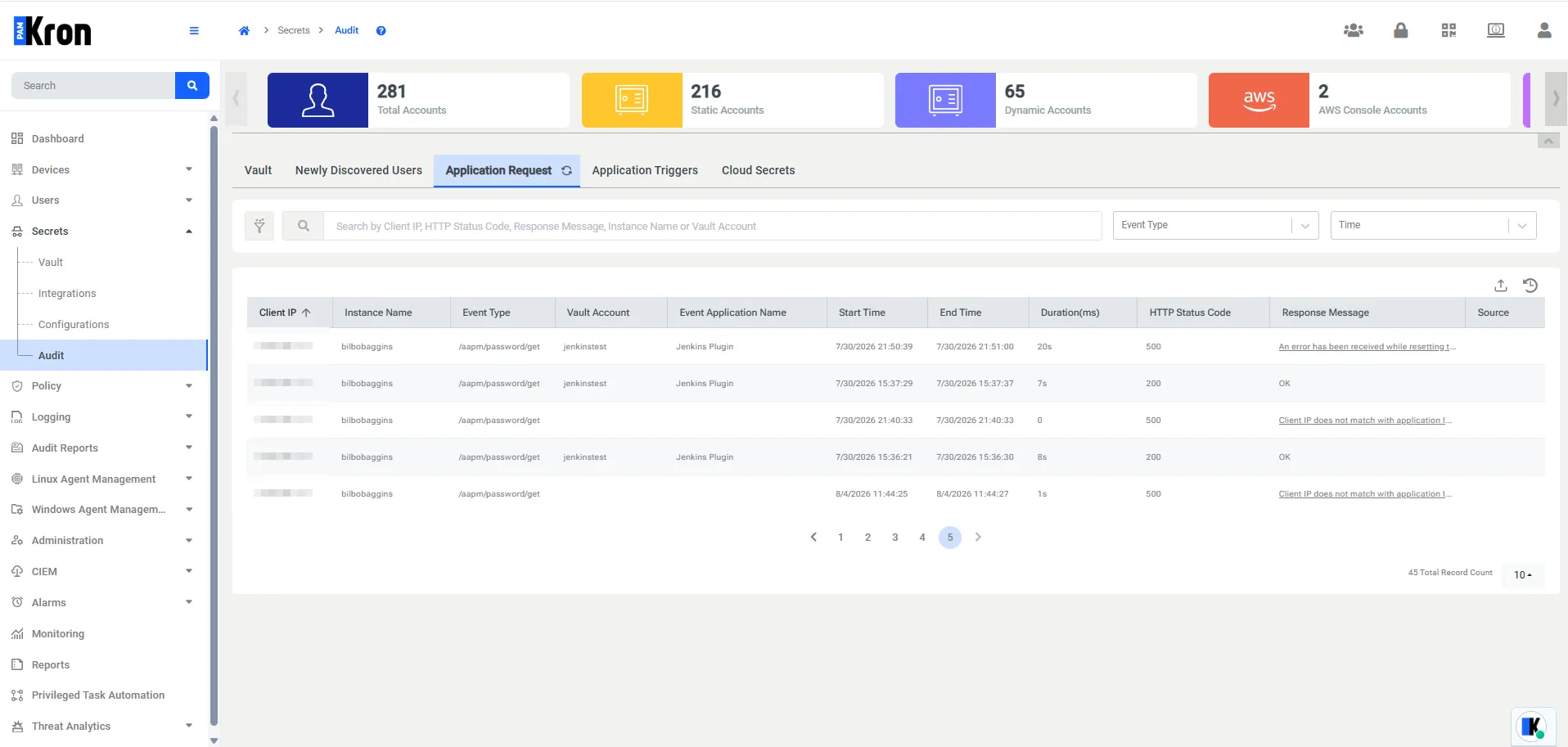
Every time a Jenkins build runs and retrieves the secret, Kron PAM records the request. Navigate to Secrets > Audit and select the Application Request tab to confirm that the relevant account (e.g. jenkinstest) are logged, with the Event Application Name matching the token.
A successful retrieval shows HTTP Status Code 200 with a Response Message of OK; failed attempts (for example, when the Client IP does not match the application token's configured address range) are logged with a non-200 status and an error message, which is useful for troubleshooting.
Result
Jenkins is now integrated with Kron PAM AAPM through the Kron PAM Secret Plugin. Jenkins jobs bound to the configured credential can retrieve the target account's secret at build time via an environment variable, without the secret ever being stored in the job configuration, in source control, or in plain text logs. Every retrieval is recorded in the Kron PAM audit trail, providing traceability between Jenkins builds and vault access.