Commmand Policy
The "reboot" command might be blocked for all users globally, but through an Advanced Policy, we can grant the "Linux Administrator" group permission to use it. If an advanced rule exists for a command, it overrides the general policy for those specific users, and the advanced rule takes precedence.
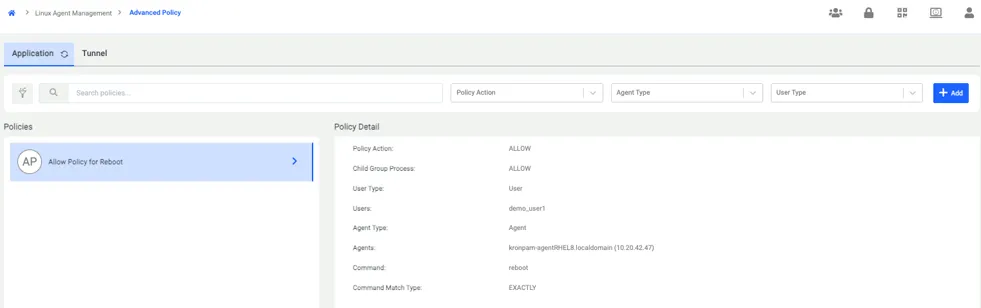
To create an Advanced Policy, click the ADD button in the top-right corner of the screen and proceed by filling in the required information.
1. First Step: You must assign a name to the Advanced Policy and select the specific users or user groups to whom this policy will apply.
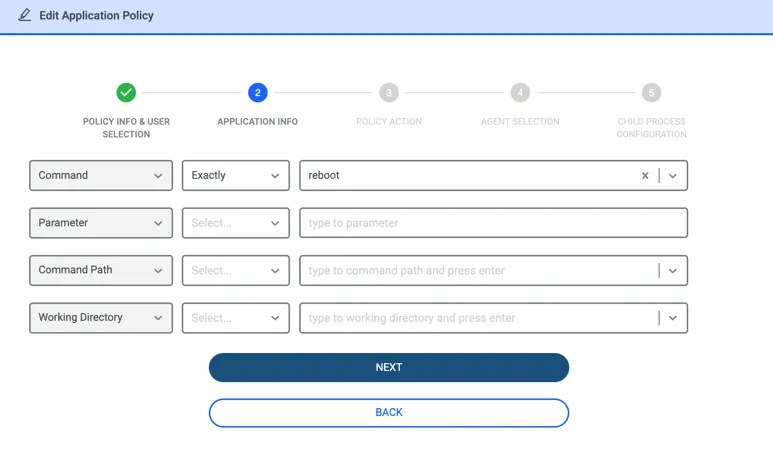
2. Second Step: You add the specific command to be governed by the policy, along with any necessary details (parameters, paths, etc.).
3. Third Step: You must select the policy type. There are three options available, and the subsequent steps vary slightly based on your choice:
a. Allow: If selected, you will be asked to specify the endpoints where this policy is valid and define the behavior for subprocesses.
b. Block: If selected, you must specify the relevant endpoints and decide whether or not to display a warning notification to the end user when the command is blocked.
c. Elevation: If selected, you will define the target endpoints and subprocess behavior. Most importantly, you must configure the approval mechanism: whether the command requires OTP (One-Time Password), Managerial Approval, or both.
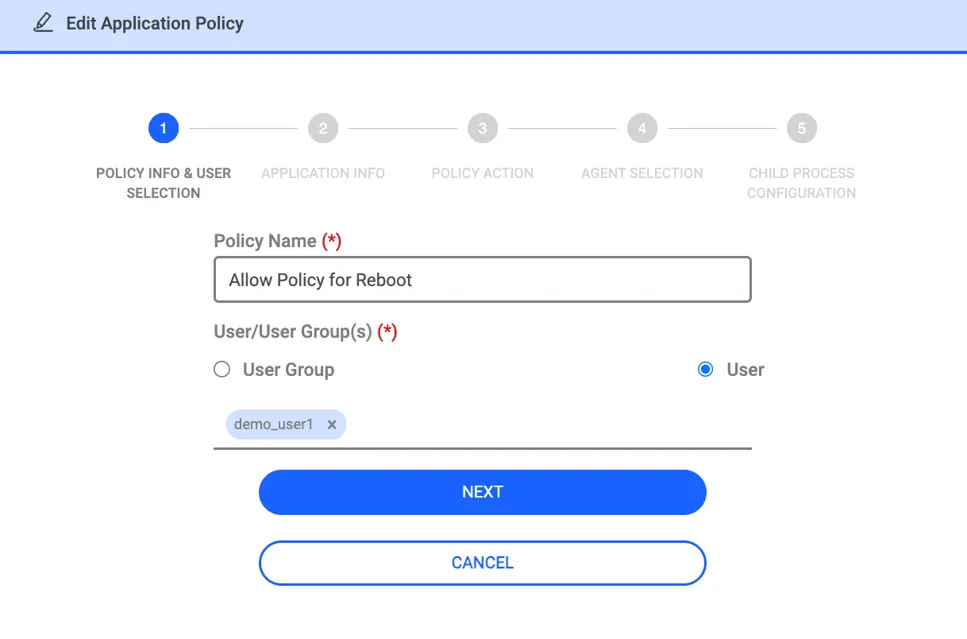
When selecting users in Advanced Policy, the listed users are those who have been imported into Kron PAM from Active Directory. Local users are not populated or displayed in this section.
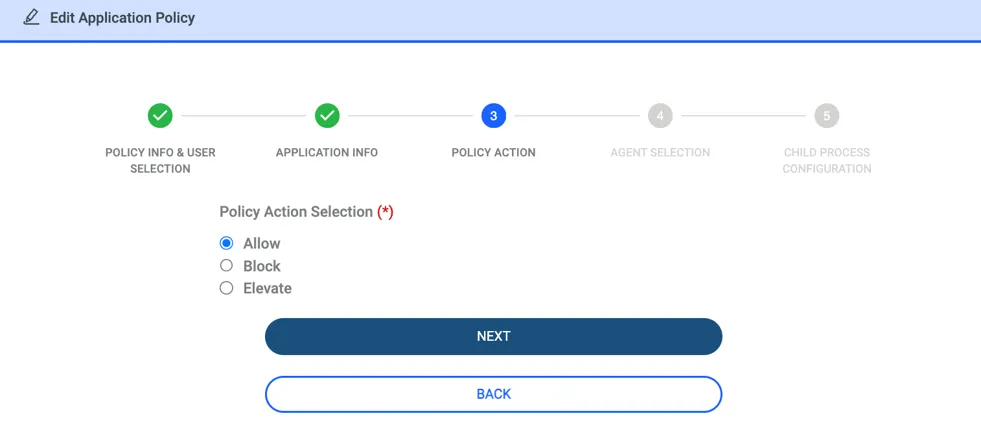
If Allow policy is selected, the steps below will be configured.
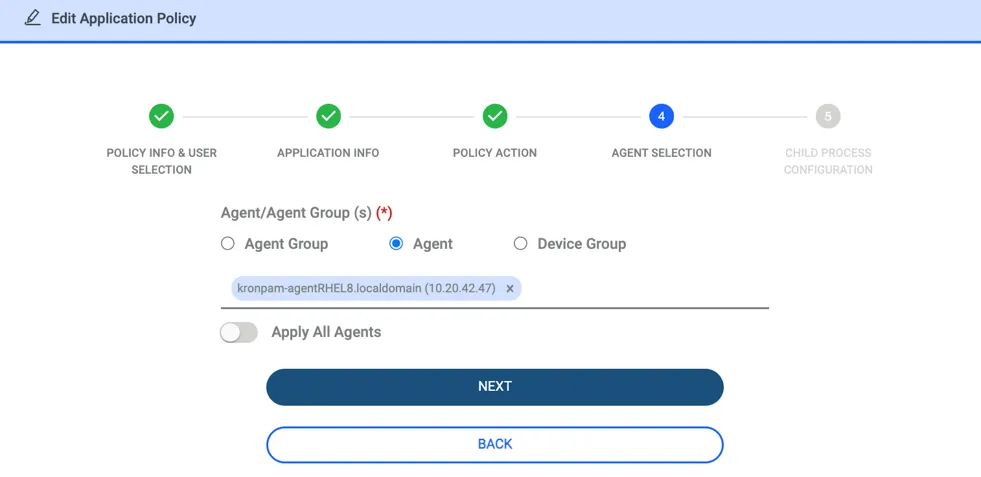
If "Apply to All Agents" is selected, the policy will be received by every endpoint where an agent is installed.
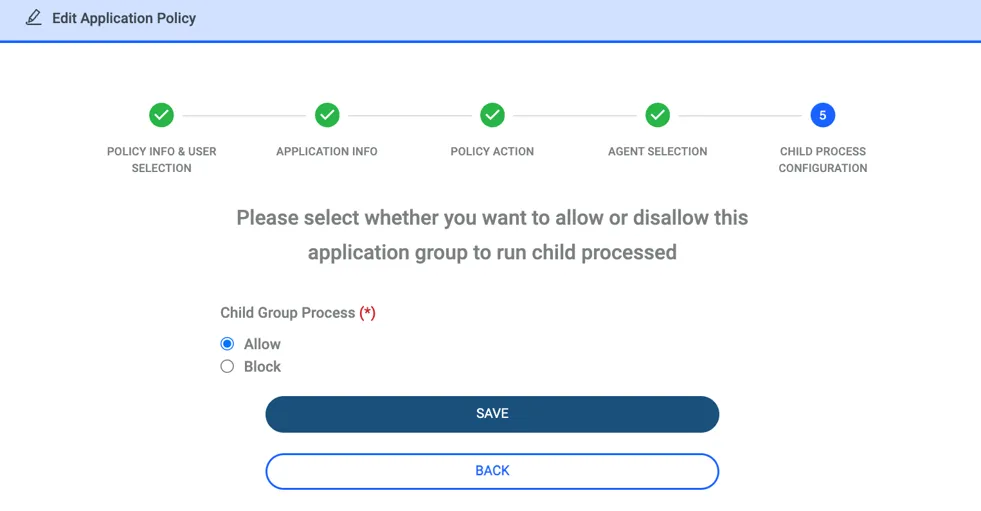
If Block policy is selected, the steps below will be configured.
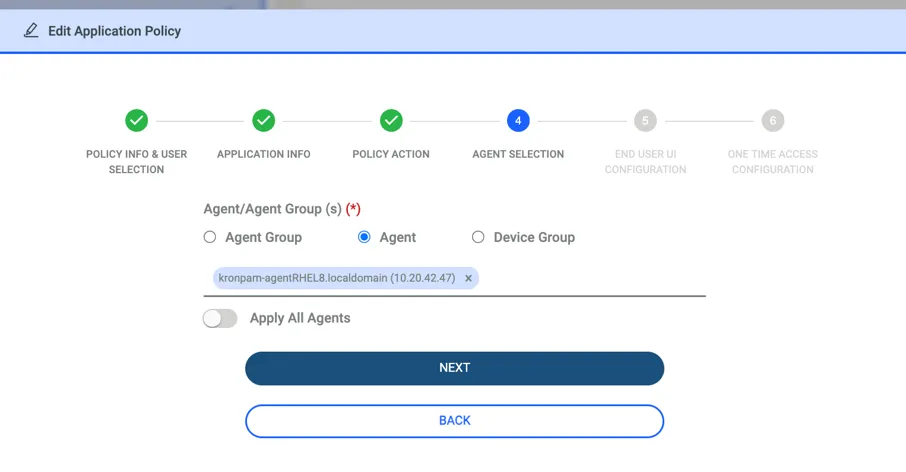
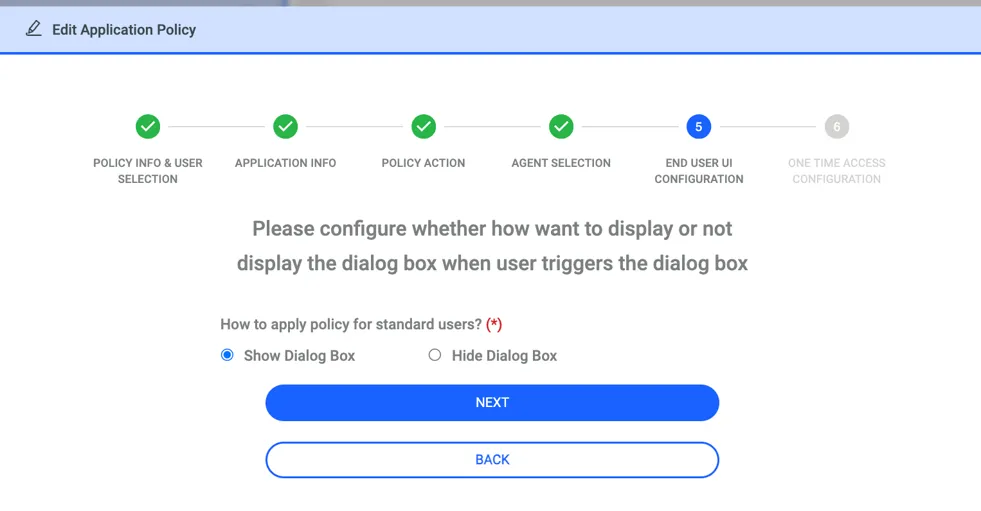
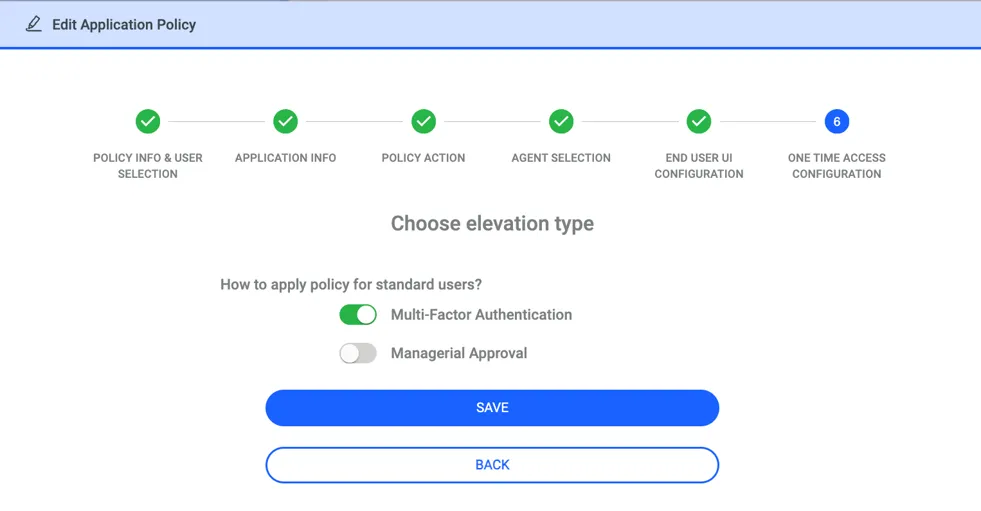
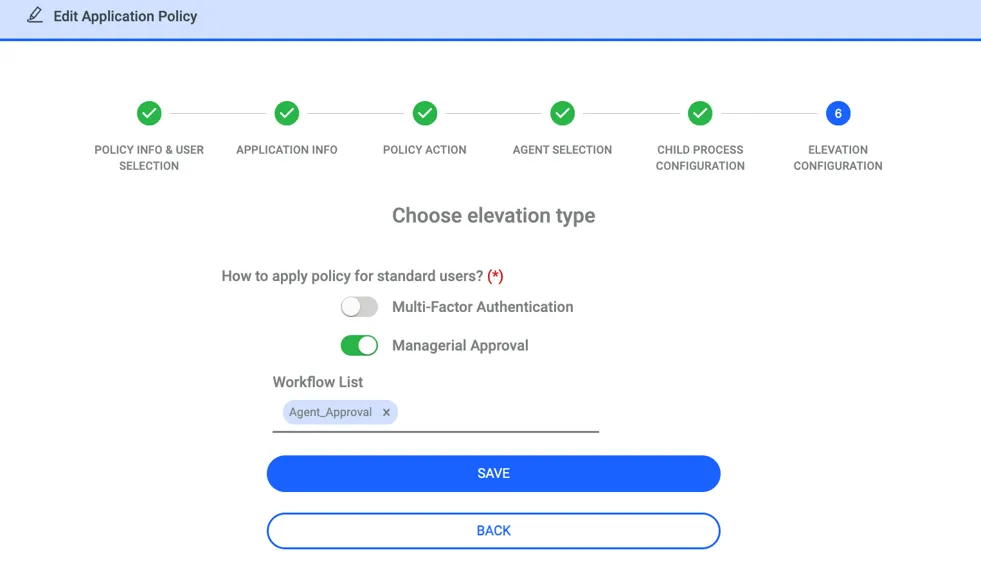
If Elevation policy is selected,the steps below will be configured.
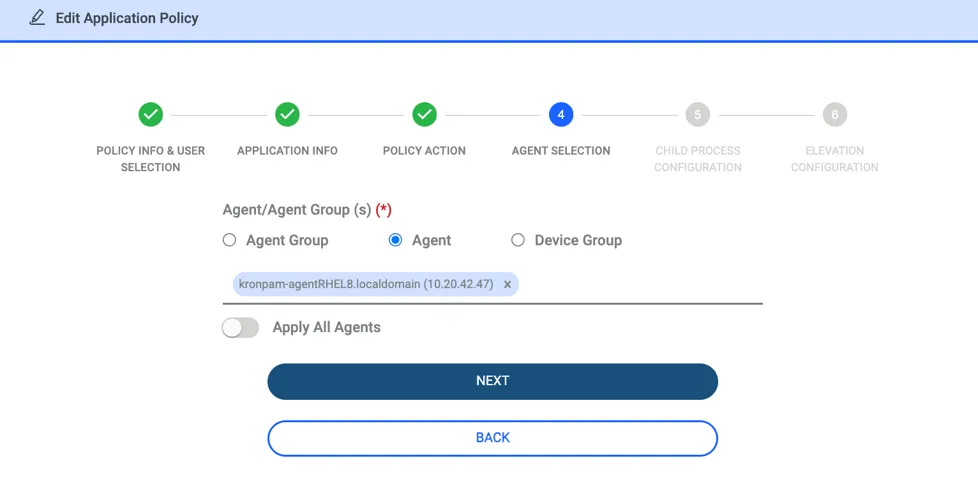
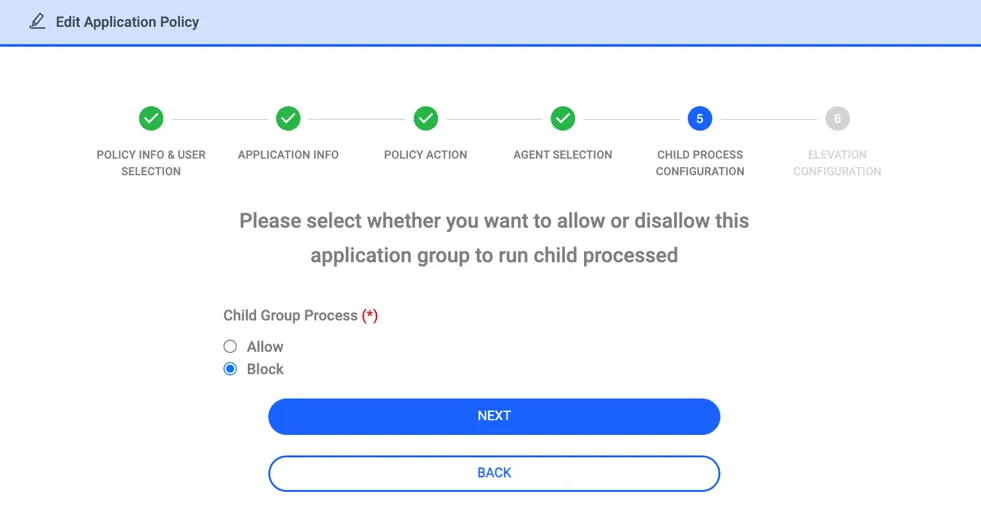
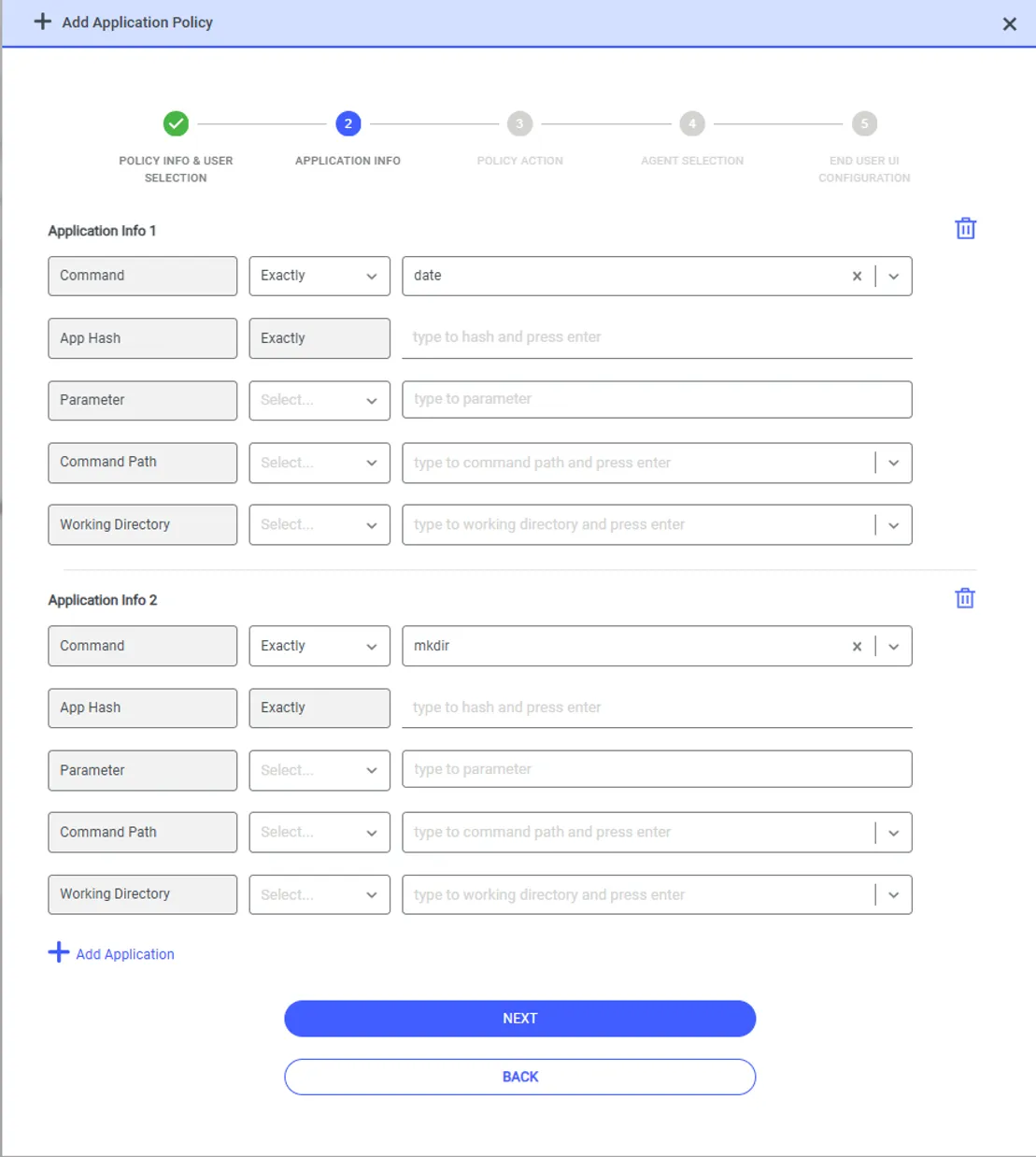
Adding Multiple Applications to an Advanced Policy
An advanced policy applies to one or more applications or commands. To add another application to the same policy, click Add Application on the APPLICATION INFO step. Each application appears in its own Application Info section. To remove an application, click the delete icon next to its section.
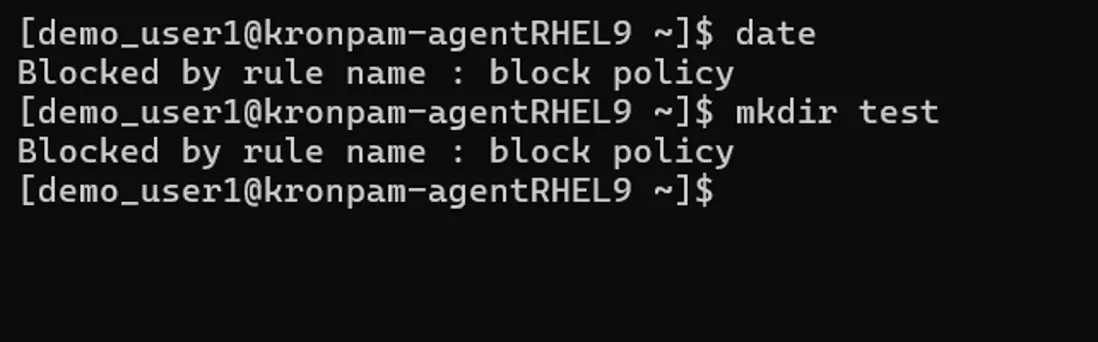
The policy action applies to every application or command in the policy. In the following example, an advanced policy blocks the date and mkdir commands for the demo_user1 user on the kronpam-agentRHEL9 agent. When the user runs either command, the agent blocks it and returns the name of the rule:
Running Applications with Sudo Rights in Advanced Policy
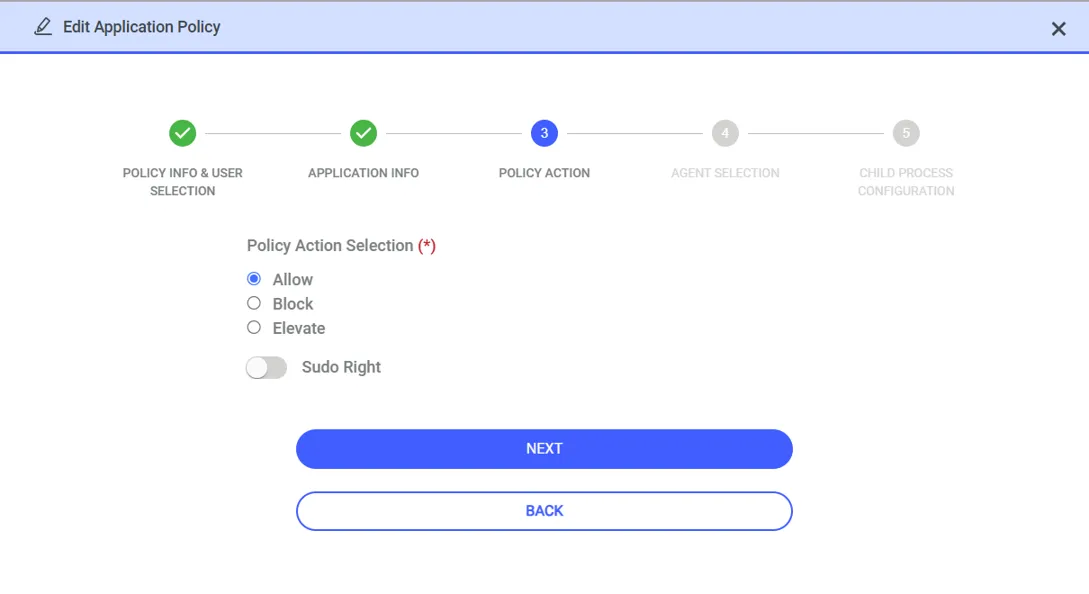
The Sudo Right option defines whether users complete an additional verification when they run an application with sudo. The option appears on the POLICY ACTION step after you select Allow as the policy action in advanced policy.
Enable Sudo Right to let the users that the policy applies to run the application with sudo directly:
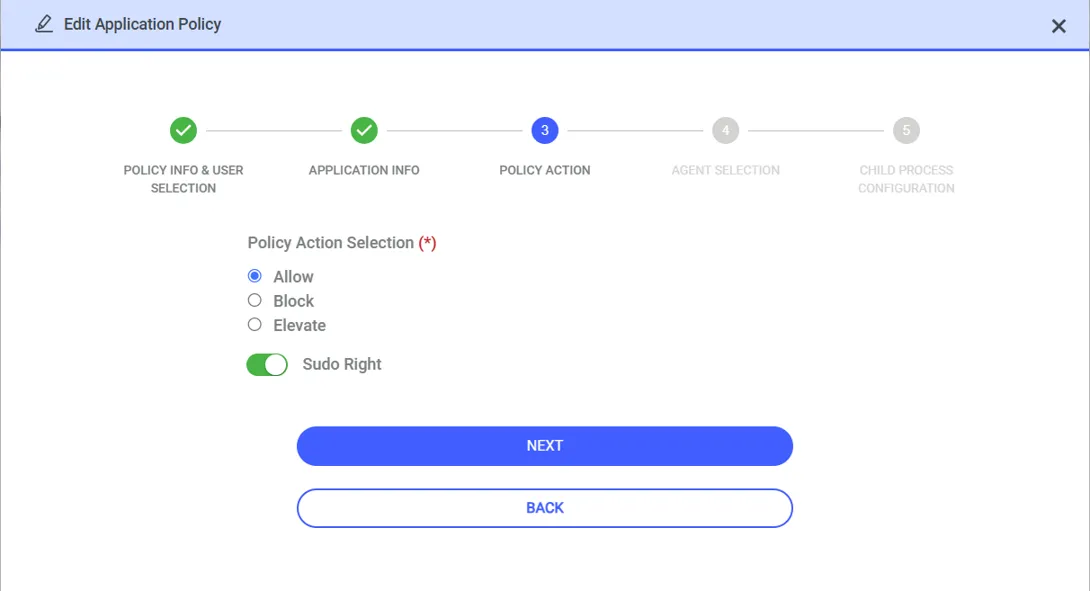
Disable Sudo Right to apply the standard elevation flow. The agent then asks the user for verification before it runs the application:
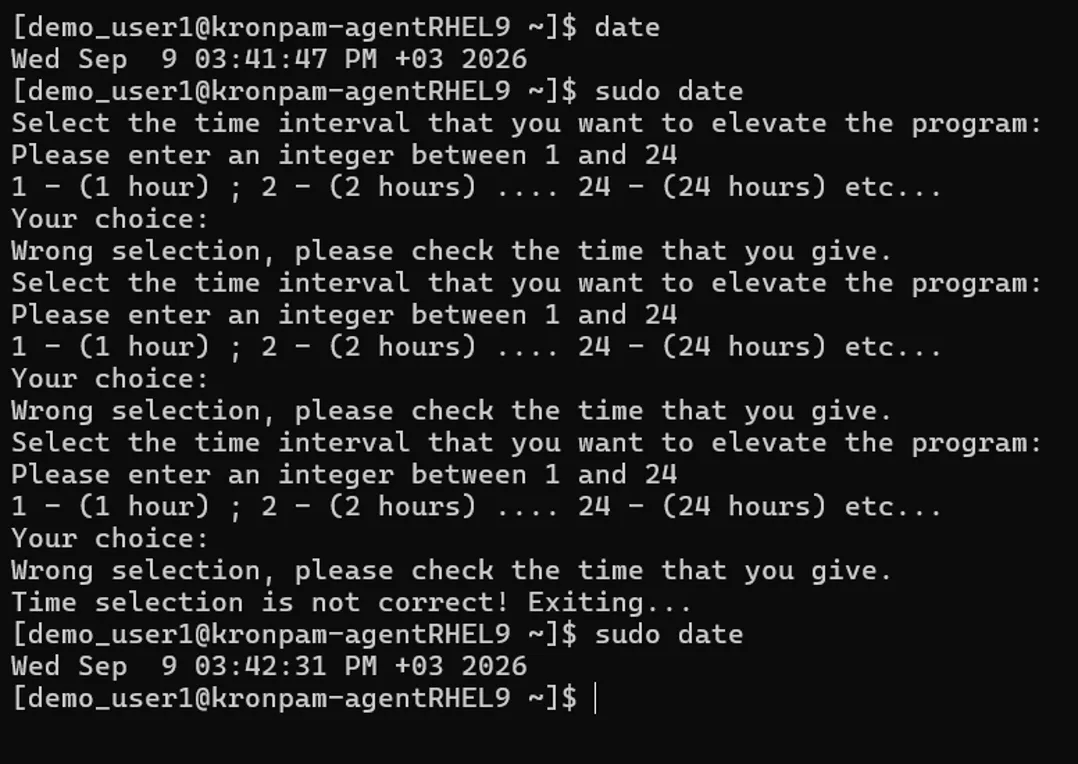
The following example shows both behaviors for the demo_user1 user on the kronpam-agentRHEL9 agent. While Sudo Right is disabled, the agent asks for the elevation period, and the date command exits after three incorrect entries. After you enable Sudo Right, the same command runs immediately: