Advance Policy for Windows Services
Windows services can be policed via Kron PAM. Local admin users can be restricted, or normal users can have rights on the Windows services that require administrator privileges. Policies can be written for a single user or user group over an agent or agent group.
- To do that, go to the Services section of the Advanced Policy Screen.
- Click the Add button.
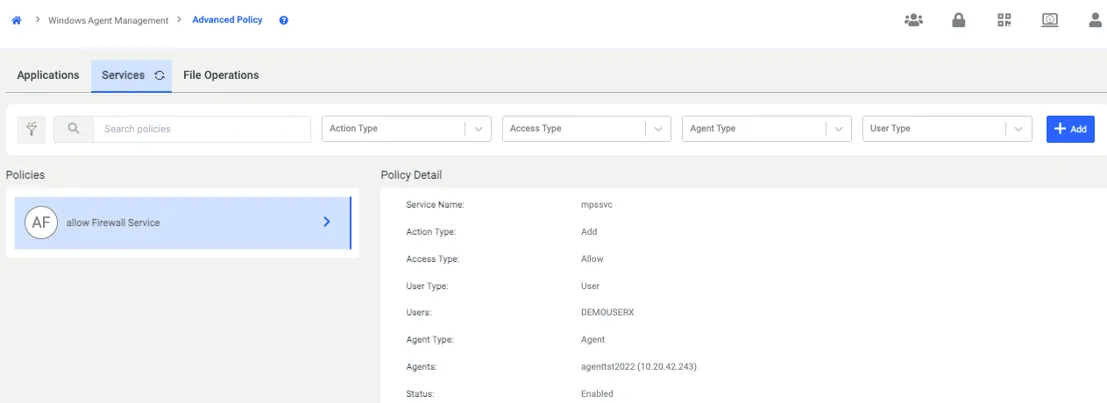
- Give a name for your Service Policy and choose the user or user group.
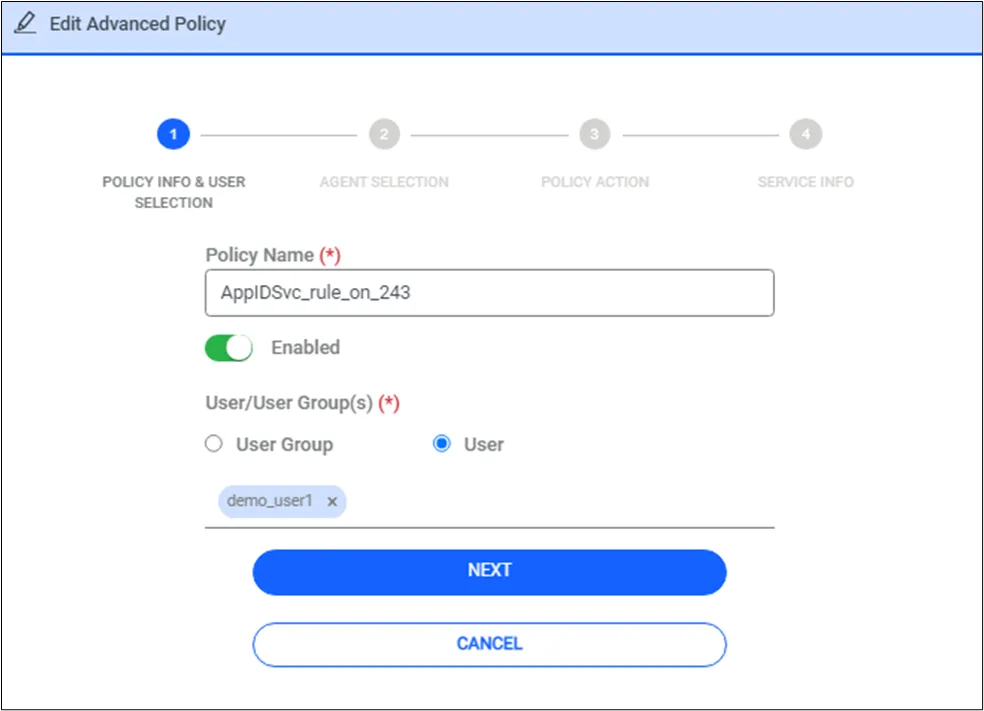
Service rule can be enabled or disabled. When it is disabled rule will be reverted.
- Select the agent, agent groups, or device group.
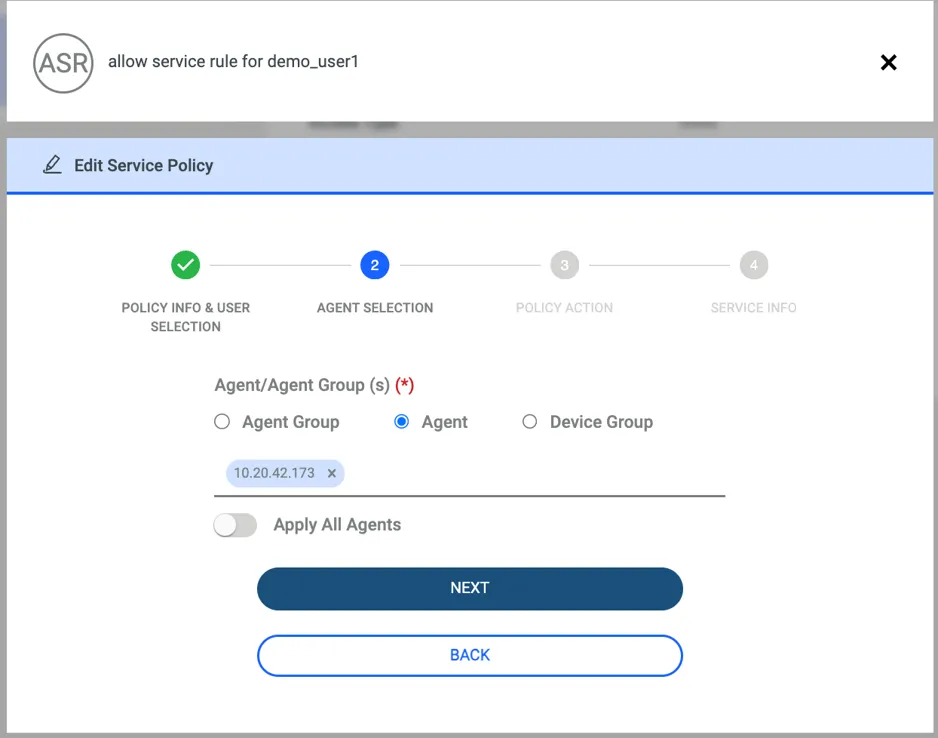
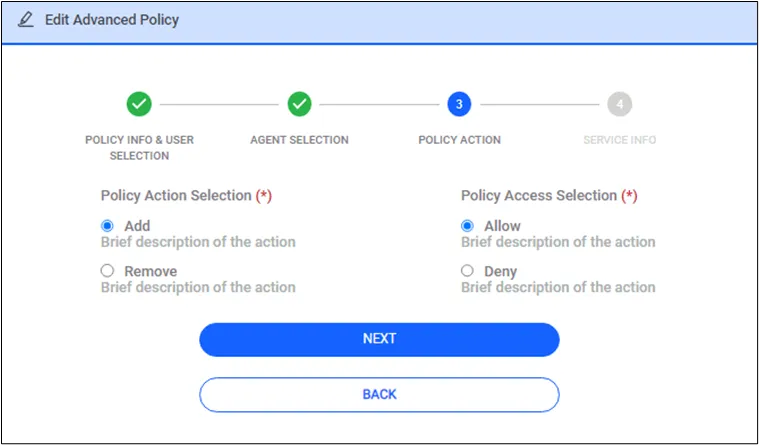
- Choose the policy according to needs. If a user is a local administrator, you can restrict their rights with remove + allow or add + deny. If the user isn't a local administrator, you can give rights with add + allow or remove + deny. Each type is supported.
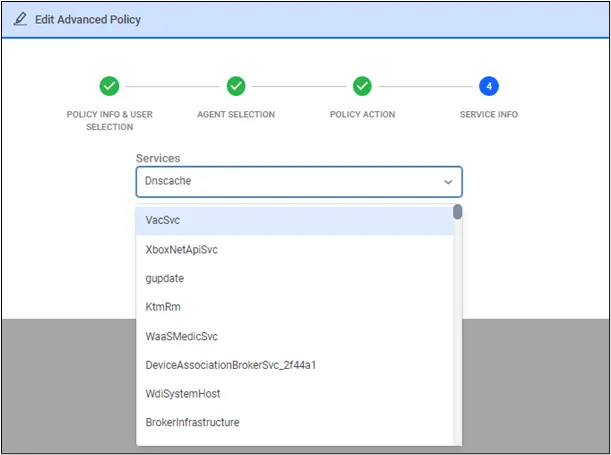
- Lastly, you need to choose the service name from the drop-down menu and save the configuration.
* While giving rights to Windows Services, sometimes we can have errors due to Windows default Service permissions. We may not apply to given rights on Windows Services. Please check the detailed logs.
Adding Multiple Applications to an Advanced Policy
An advanced policy applies to one or more applications. To add another application to the same policy, click Add Application on the APPLICATION INFO step. Each application appears in its own Application Info section. To remove an application, click the delete icon next to its section.
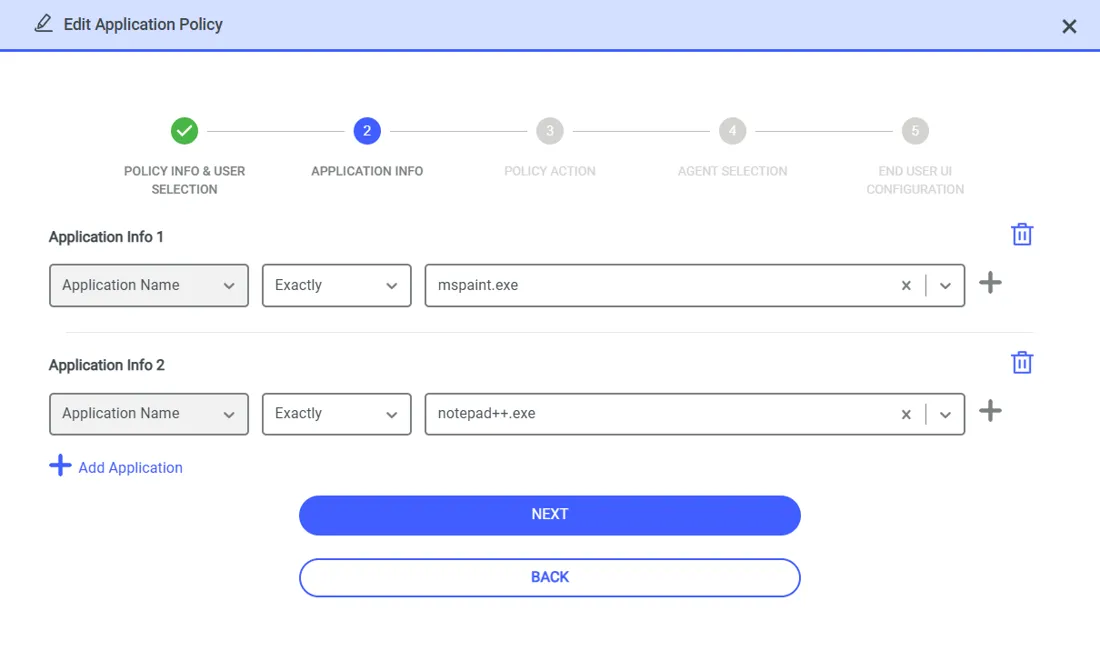
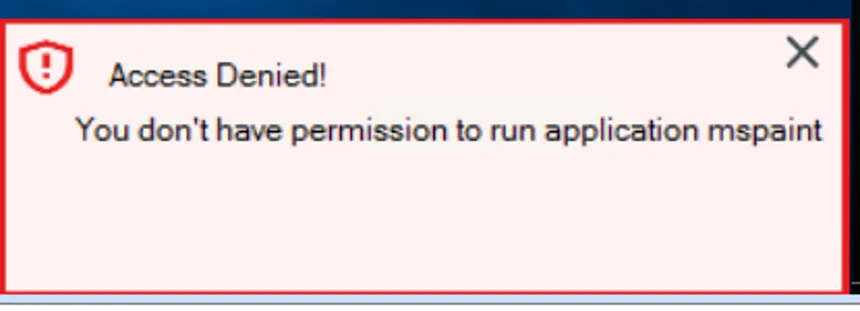
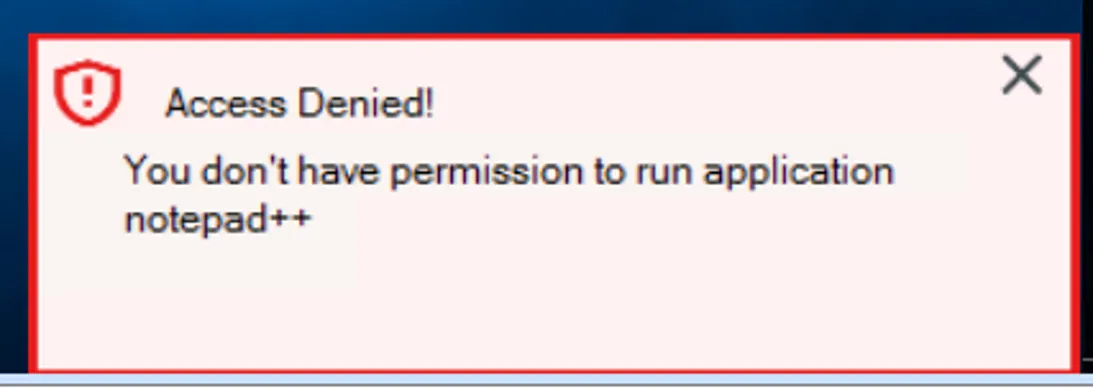
The policy action applies to every application in the policy. In the following example, an advanced policy blocks the mspaint.exe and notepad++.exe applications. When a user starts either application, the agent blocks it and displays the Access Denied! message: