Applying Masking from Scheduled Discovery Results
The Add Masking action allows masking to be applied directly on scheduled discovery results. When a masking method is saved, it is enforced immediately on the target database and also persisted under the selected Policy Group as an AutoGen policy entry. No manual rule creation is required in Policy Management.
To Apply Masking in Sensitive Data Discovery:
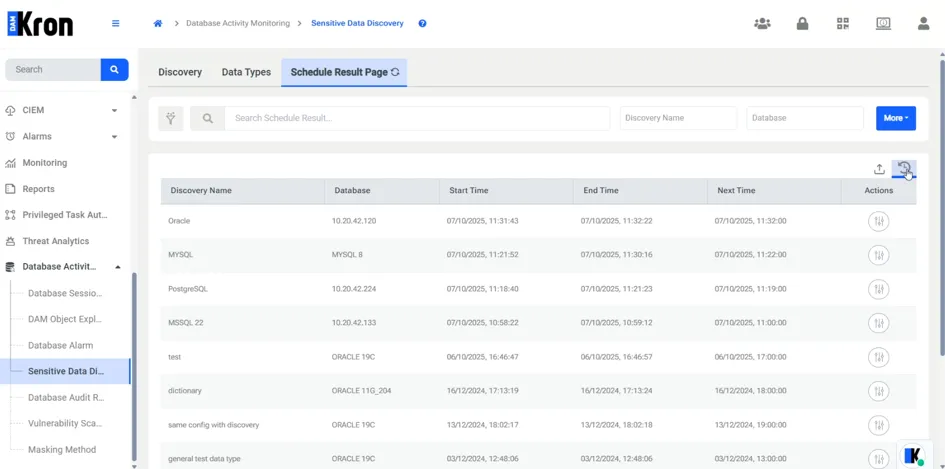
1. Navigate to Sensitive Data Discovery and open the Schedule Result Page.
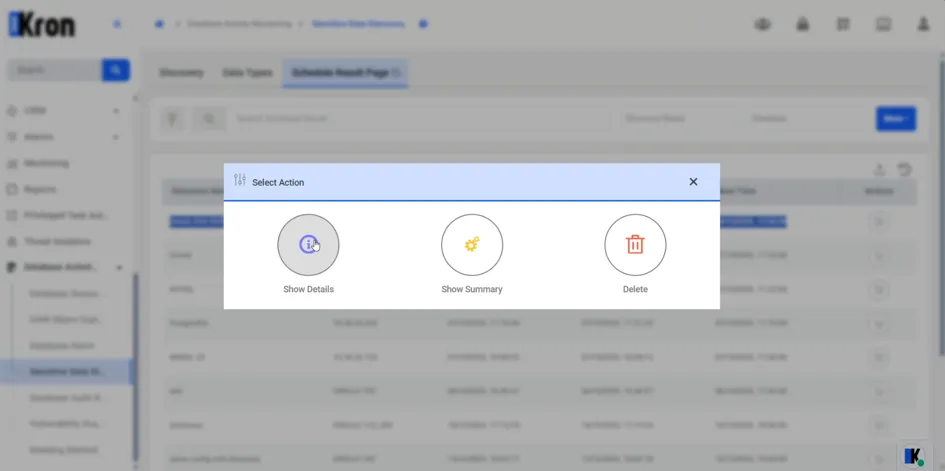
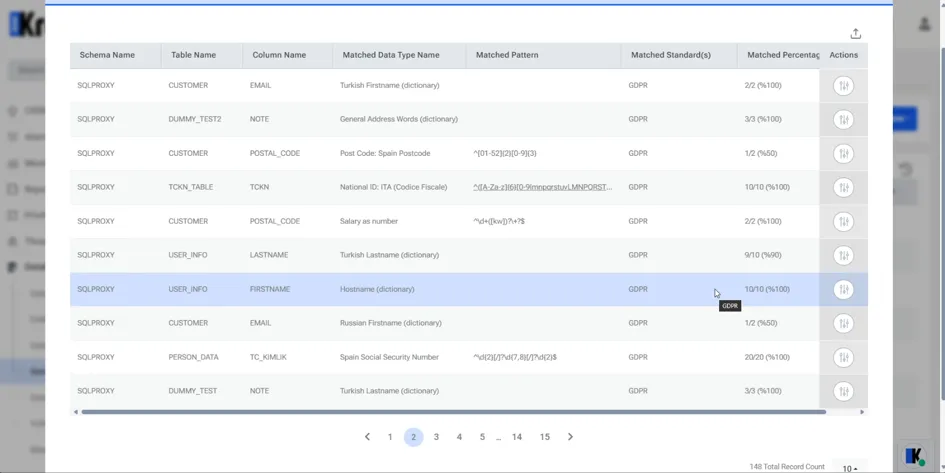
2. Click Options > Show Details to view column-level matches.
3. Select the row for the column to be masked. Confirm Table, Column, and Match %.
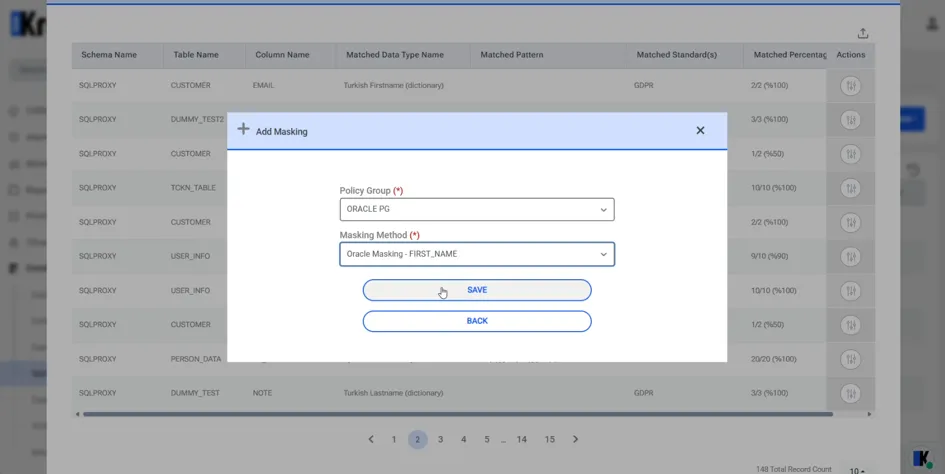
4. Click Actions > Add Masking to open the dialog.
5. In Policy Group, select a group appropriate for the target device (for example, Oracle PG).
6. In Masking Method, select a method compatible with the column’s data type (for example, Oracle_First_Name).
7. Click Save. Masking is applied immediately and an AutoGen rule is created under the chosen Policy Group.
Verifying Masked Data
After saving, verify the masking in a database client.
- Open a SQL client (for example, DBeaver) and re-query the same table.
- Confirm that in-scope fields return masked values (for example, *John →“n”, _Emma →“_a.”).
Managing the Generated Policy
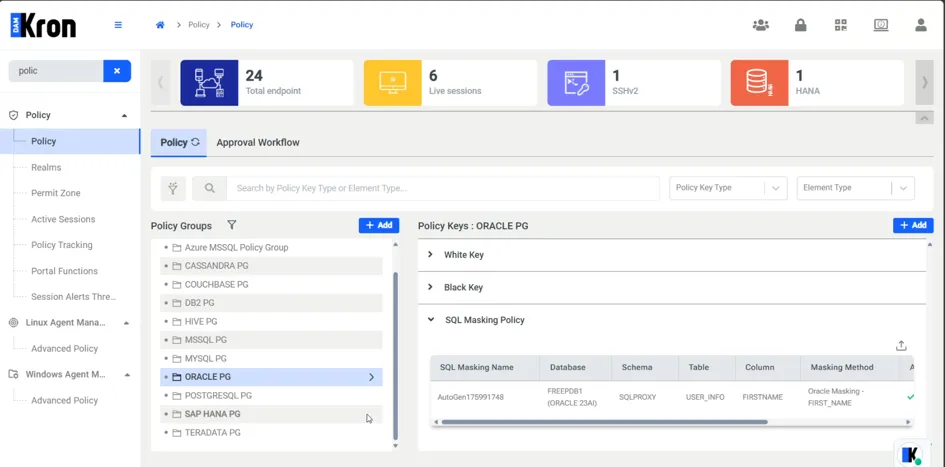
The system writes the selection as an AutoGen entry in the selected policy group.
- Navigate to Policy Management > Groups > {Selected Group}.
- Confirm an AutoGen rule exists and is active.
- To revert, Disable or Delete the AutoGen rule and re-query the table to confirm original values are returned.
· Only masking methods compatible with the column’s data type should be selected.
· If no suitable policy group exists for the device type, the Policy Group list will be empty.
· The Add Masking action is available only for Completed scheduled jobs.