Offline Token
5 min
Adding Offline Token
Follow the steps below to add an offline token.
Step 1: Generate a QR Code from Kron PAM Web GUI.
- Log in to Kron PAM Web GUI.
- Navigate to Administration > 2FA Provisioning. Here you will find the QR code and the activation code. To generate a new QR and activation code, select Generate New One.
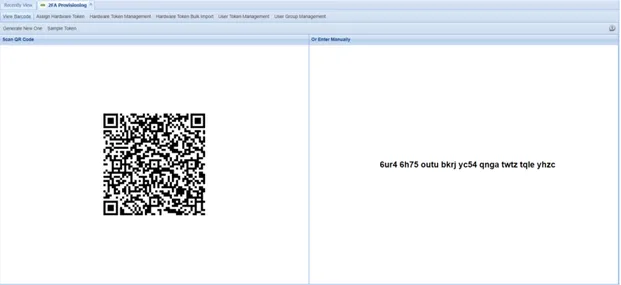
2FA Provisioning
Step 2: Generate a token in Mobile Client.
- Open the Kron PAM Mobile Client App and log in with your Kron PAM user.
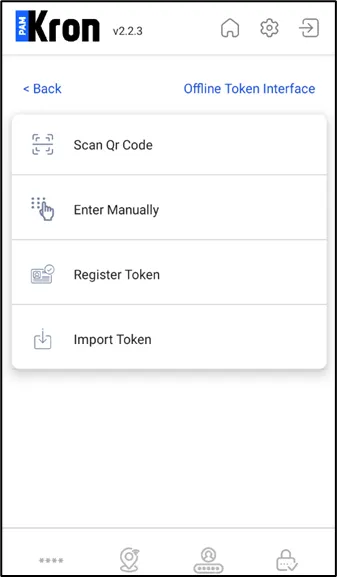
- Navigate to Offline Token.
- Generate a token with any of the following methods:
- Scan QR code – you must allow the app to access and use the camera
- Enter the code manually with your username
- Register token
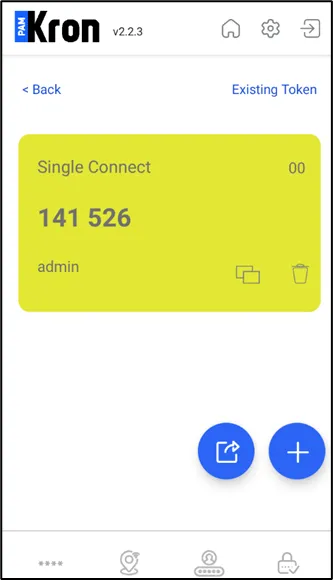
The tokens you generate with any of these methods will appear on the Offline Token screen.
Note that the 2FA code will be generated for a pre-set time interval on the mobile application.
Offline Token
Offline Token
Exporting and Importing Token
You can export your tokens to copy them to another device or simply protect them from loss due to updates.
To export:
- Tap on the Offline Token menu.
- Select Export, and it copies the collection of tokens in an encoded format and adds them to the clipboard.
- To keep it as a backup, paste it into notes or email.
To import a backup:
- Select and copy the backup text you stored in notes, email, etc.
- Tap on the + button on the top-right corner, and the activation screen opens.
- Select Import Token.
- Tap on OK on the Your tokens are imported successfully dialog box.